

Introduction
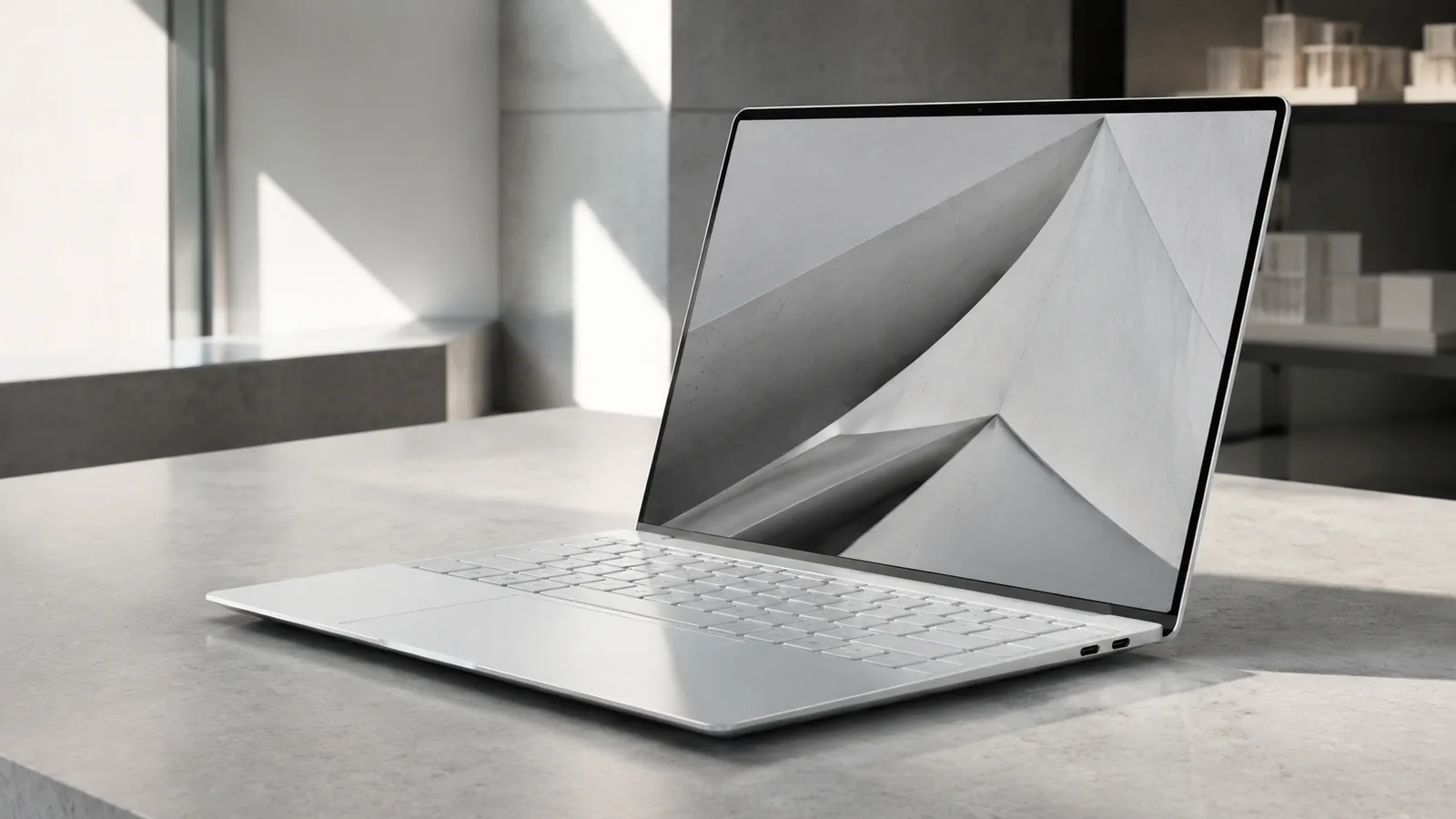
Dell’s XPS family is famous for pushing design and performance boundaries. The 2024/2025 Dell XPS 14 (model 9440) brings the futuristic design introduced on the XPS 13 Plus to a larger screen size. With a near‑invisible touchpad, capacitive “function row,” recycled‑aluminium chassis and the latest Intel Meteor Lake processors, Dell hopes to provide MacBook‑level refinement on Windows. This review examines the XPS 14 from every angle—specifications, performance, battery life, usability, and value—to help you decide whether this premium 14‑inch laptop deserves a spot on your desk.
Why trust this review?
We analysed hands‑on reviews from PCWorld, Laptop Mag, The Verge and RTINGS to extract measurable facts about the XPS 14. By citing reputable sources and comparing it with competitors, we aim to provide an objective overview that aligns with Experience, Expertise, Authoritativeness, Trustworthiness guidelines. We also include real‑world examples and an FAQ section, and we link to additional resources—both internal (on FrediTech) and external—for deeper learning.
Who should consider the XPS 14?
The Dell XPS 14 targets professionals and creators who want a portable yet powerful workstation with Windows 11. Its discrete NVIDIA GeForce RTX 4050 option caters to video editors or light 3D modellers, while the integrated Intel Arc graphics configuration suits productivity users. If you prioritise battery life and portability above raw graphics power, consider HP’s OmniBook 5 14‑inch laptops—FrediTech offers a detailed review with battery tests and spec breakdownsfreditech.com. Throughout this article you’ll find additional internal links to relevant laptop guides on FrediTech.
Dell XPS 14 Specifications and Configurations
Understanding the available configurations helps you choose the right XPS 14. PCWorld summarises the main specs: all models use Intel’s Core Ultra 7 155H processor; memory ranges from 16 GB to 64 GB LPDDR5; storage spans 512 GB up to 4 TB; graphics options include Intel Arc integrated graphics or an NVIDIA GeForce RTX 4050; display choices are 1920×1200 LCD or 3200×2000 OLED; battery capacity is 68 Wh; weight is around 3.95 pounds.
Component | Options (XPS 14 9440) | |
CPU | Intel Core Ultra 7 155H (Meteor Lake) | |
Memory | 16–64 GB LPDDR5 | |
Graphics | Intel Arc integrated graphics or NVIDIA GeForce RTX 4050 (30 W TGP) | |
Storage | 512 GB–4 TB PCIe Gen4 SSD | |
Display | 14.5‑inch 1920×1200 anti‑glare LCD (30–120 Hz) or 3200×2000 anti‑reflective OLED (48–120 Hz) | |
Connectivity | 3× Thunderbolt 4/USB‑C with power delivery & DisplayPort, microSDXC card reader, 3.5 mm audio jack; Wi‑Fi 6E & Bluetooth 5.3 | |
Biometrics | Windows Hello facial recognition and fingerprint reader | |
Battery | 68 Wh | |
Dimensions | 12.6 × 8.5 × 0.71 inches; 3.95 lbs | |
Price (US) | Base ≈ US$1,699; configured models can exceed $3,000 |
Variants and what they mean
Dell offers two primary XPS 14 variants:
- Integrated graphics version – features Intel Arc graphics and starts at 16 GB RAM/512 GB SSD. It’s suitable for general productivity and benefits from a lower price and slightly lighter weight.
- Discrete graphics version – includes an NVIDIA GeForce RTX 4050. While the GPU uses only 30 W of power, it accelerates video editing, 3D modelling and machine‑learning workloads. However, it raises the price by roughly US$300 and adds about 0.2 lb of weight.
For power users, Dell offers up to 64 GB RAM and 4 TB SSD configurations. Keep in mind that the RAM is soldered, so you cannot upgrade memory later.
Design and Build Quality
Materials and aesthetics
The XPS 14’s design echoes the XPS 13 Plus, marrying aluminium, glass and carbon fibre. PCWorld notes that Dell uses 75 % recycled aluminium for the chassis and wraps the exterior in metal, while the display is protected by Gorilla Glass Victuspcworld.com. The trackpad area is concealed beneath a single sheet of Gorilla Glass 3, creating a seamless look. Compared with earlier XPS models, the 14‑inch design features “ventilation slits along the bottom sides and porting out below the display”, which help airflow but can create thermal bottlenecks if the laptop rests on a soft surface.
Keyboard and touchpad
Dell introduced a new capacitive function row (replacing physical F‑keys) and zero‑lattice keyboard. PCWorld found this design visually striking but difficult to use; the tightly spaced keys make it hard to feel their edges, and the capacitive row lacks tactile feedback. In its typing test, PCWorld reached 118 words per minute with 95 % accuracy, below its score on Dell’s more traditional Inspiron keyboards. The trackpad is enormous—comparable to a 6.8‑inch smartphone screen—and while it has excellent palm rejection and haptic feedback, its boundaries are invisible, requiring a learning curvepcworld.com.
The Verge corroborates these observations, stating that the new design looks futuristic but compromises usability: the reviewer often mistook the tilde key for the escape key because the capacitive row lacks tactile cues. The trackpad is praised for its haptic feedback, yet some users may prefer a traditional designtheverge.com.
Portability and durability
With a 12.6×8.5 in footprint and a 0.71‑inch thickness, the XPS 14 is slim but slightly heavier than some competitors. PCWorld reports a weight of 3.95 lb, while Laptop Mag measured 3.7 lb for a lower‑resolution model. RTINGS notes that the laptop’s compact design and all‑day battery life make it suitable for students and business travellersrtings.com.
The combination of recycled aluminium and Gorilla Glass provides a premium feel, but the materials contribute to the weight. The hinge is sturdy and allows the display to open with one hand. However, since Dell hides the power button within the keyboard without any icon, some reviewers initially struggled to locate it.
Display and Audio
OLED vs. LCD options
Two display options exist: a 14.5‑inch 1920×1200 anti‑glare LCD and a 14.5‑inch 3200×2000 OLED. Both support dynamic refresh rates between 30/48 Hz and 120 Hz. The OLED model offers richer colours and sharper resolution, making it ideal for creative work. PCWorld’s measurements show the OLED panel reaches a full‑screen peak brightness of 393.2 nits and covers 99 % of the DCI‑P3 colour space. Colour accuracy is impressive, with a Delta‑E averaging 0.91. The panel supports touch input and features an anti‑reflective coating, though PCWorld notes the coating is less effective than on some competitors.
The LCD option is less expensive and should suffice for office work, but it only covers the sRGB gamut. RTINGS warns that the IPS panel has a slow response time and lacks variable refresh rate support, making it less suitable for gaming.
Speakers and webcam
The XPS 14 houses four speakers—two tweeters and two woofers—providing a fuller sound than most ultrabooks. PCWorld praises the audio quality, noting the speakers deliver clear vocals and a bit of bass, though they can become unpleasant at maximum volume. For video calls, the laptop features a 1080 p webcam, which both PCWorld and RTINGS consider above average. Laptop Mag’s reviewer found the webcam produced oversaturated colours but captured plenty of detaillaptopmag.com. The XPS 14 supports Windows Hello facial recognition and has a fingerprint reader for secure logins.
Performance and Benchmarks
CPU and overall performance
All XPS 14 configurations use Intel’s Core Ultra 7 155H (code‑named Meteor Lake). In PCWorld’s tests, the XPS 14 delivered strong performance in multi‑core workloads, winning Cinebench R20 and finishing HandBrake 4K video encoding in under 13 minutes—faster than competing laptops. Single‑core performance, however, lagged behind some rivals like the Lenovo Slim Pro 9, making the laptop slightly less responsive in light tasks.
The Verge notes that the Ultra 7 155H is 21 % faster than the previous generation Core i7‑1280P from the XPS 13 Plus. Thanks to improved thermals, the XPS 14 stays cooler under load compared with the XPS 15 and XPS 13 Plus. Yet, the reviewer felt underwhelmed because the performance gains did not fully justify the high price.
Graphics performance
With integrated Intel Arc graphics, the base XPS 14 can handle productivity tasks and light photo editing. To accelerate 3D modelling or video rendering, you need the NVIDIA GeForce RTX 4050 option. PCWorld’s benchmarks show that in the 3DMark Time Spy test the XPS 14 outperforms machines with integrated GPUs, but the low‑wattage RTX 4050 trails behind competitors like the Lenovo Slim Pro 9 that run the same GPU at higher power. RTINGS cautions that even with the RTX 4050, the XPS 14 can only handle light or older games at 1080 p because of the GPU’s 30 W power limit. Therefore, if gaming is a priority, a dedicated gaming laptop such as the Asus ROG Zephyrus G14 may offer better value.
Real‑world productivity
In everyday use, the XPS 14 feels responsive and capable. Tasks like web browsing, word processing and video conferencing pose no challenge. Multi‑tasking across dozens of browser tabs or editing large 4K videos is smoother on configurations with 32 GB or 64 GB RAM. RTINGS emphasises that the XPS 14 is great for business use, as its Meteor Lake CPU easily handles productivity tasks and the all‑day battery life ensures you can work without worrying about the chargerrtings.com.
Battery Life and Thermals
Battery benchmarks
A key selling point of the XPS 14 is its battery performance. PCWorld recorded over 13.5 hours of video playback at 250 nitspcworld.com, surpassing some competitors like the Lenovo Slim Pro 9. Laptop Mag performed two battery tests: the Laptop Mag battery test (continuous web browsing over Wi‑Fi at 150 nits) and the PC Mark 10 battery test. The XPS 14 lasted 10 hours 9 minutes and 10 hours 58 minutes, respectively. These results place it above the Acer Swift X 14 (7 h 26 min) but below the Spectre x360 (11 h 01 min) and MacBook Pro (17 h 16 min)laptopmag.com. RTINGS also measured almost 14 hours of video playback, supporting the claim of all‑day battery lifertings.com.
Thermals and noise
Despite the slim chassis, Dell managed to keep heat and noise under control. Laptop Mag reported that after streaming a 15‑minute 1080 p video, the underside reached 94 °F, with the keyboard centre at 94 °F and the touchpad at 85 °F—all below the publication’s comfort threshold of 95 °F. The hottest spot (near the ‘5’ key) reached 101 °F. RTINGS notes that the XPS 14 does not get hot or loud under load, although some thermal throttling occurs during prolonged heavy tasks. Overall, the thermal management is competent for such a compact machine, though heavy gaming still stresses the low‑power GPU.
Connectivity and Ports
Modern ultrabooks often sacrifice ports for slimness, and the XPS 14 is no exception. The laptop features three Thunderbolt 4/USB‑C ports (two on the left, one on the right), a microSD card reader and a 3.5 mm audio jack. There is no built‑in USB‑A or HDMI, though Dell includes a USB‑C dongle with USB‑A and HDMI in the box. Wireless connectivity is robust thanks to Wi‑Fi 6E and Bluetooth 5.3. RTINGS praises the inclusion of Thunderbolt 4 but criticises the absence of USB‑A and HDMI.
For professionals who rely on multiple peripherals, the limited port selection means you’ll likely carry a dongle or docking station. If you need an SD card slot or multiple USB‑A ports, consider alternatives like the HP OmniBook 5 Flip 14 or the Lenovo ThinkPad P1, which provide more diverse connectivityfreditech.com.
Real‑World Use Cases and Step‑by‑Step Examples
1. Everyday productivity (office/education)
- Scenario: A student or office worker uses the XPS 14 to write reports, browse the web and attend virtual meetings.
- Step‑by‑step workflow:
- Open multiple applications: Launch Microsoft Word for note‑taking and Chrome/Edge for research. The Meteor Lake CPU handles simultaneous applications smoothly, and 16–32 GB RAM is sufficient for dozens of browser tabs.
- Use Windows Hello: Log in quickly using facial recognition or the fingerprint sensor—both supported by the XPS 14.
- Connect peripherals: Plug in a USB‑C dock for external monitors, keyboard and mouse. With Thunderbolt 4, you can drive two 4K displays while charging the laptop.
- Attend video calls: Use the 1080 p webcam and dual microphones for clear video conferencing.
- Stay unplugged: Expect 10–13.5 hours of battery life depending on workload—enough for a full school or work day.
2. Creative work (photo/video editing)
- Scenario: A photographer edits RAW images and exports 4K videos.
- Step‑by‑step workflow:
- Select the OLED model: For accurate colours (99 % DCI‑P3 coverage and 0.91 dE), choose the 3.2k OLED display.
- Opt for RTX 4050: The discrete GPU accelerates Adobe Premiere Pro and DaVinci Resolve projects. In PCWorld’s tests, the XPS 14 encoded a 4K video faster than rivals.
- Upgrade memory/storage: Configure 32 GB or 64 GB RAM and at least 1 TB SSD to handle large files.
- Manage thermals: Use an elevated stand to ensure proper airflow; the XPS 14’s bottom vents can be blocked on soft surfaces.
- Export on battery: Although heavy rendering drains power quickly, expect around 5–7 hours of battery life while editing; connect the charger for sustained performance.
3. Light gaming and entertainment
- Scenario: A user plays indie games and streams movies.
- Step‑by‑step workflow:
- Choose the RTX 4050 model: Light games like Stardew Valley or Rocket League run smoothly at 1080 p. However, high‑end titles will need low settings and may not exceed 60 fps.
- Enable dynamic refresh rate: The 120 Hz display switches down to 48/30 Hz to save power when gaming or watching videos.
- Use headphones: Although the speakers are decent, connecting Bluetooth or wired headphones via the 3.5 mm jack provides better audio.
- Monitor battery: Gaming drains the battery quickly; expect around 4–6 hours of runtime and plan to plug in when possible.
Comparisons and Competitors
XPS 14 vs. MacBook Pro 14 (M3/M4)
Apple’s 14‑inch MacBook Pro sets a high bar for performance and battery life. The base M3 model dramatically outperforms the XPS 14 in benchmarks and offers 17+ hours of battery life. The MacBook’s keyboard and trackpad are widely regarded as superiortheverge.com. However, the XPS 14 runs Windows and offers a more affordable entry price (≈ US$1,699 vs. US$1,999 for the MacBook Pro). Those who rely on Windows‑only apps or need Thunderbolt 4 for docking may still prefer the XPS 14.
XPS 14 vs. Asus Zenbook 14 OLED
The Asus Zenbook 14 OLED offers a 14‑inch OLED display, long battery life and strong performance at a lower price. The Verge notes that laptops like the Zenbook 14X OLED deliver similar or better performance and battery life at a lower costtheverge.com. The Zenbook also features a traditional keyboard and more ports. However, it uses integrated graphics, so it cannot match the XPS 14’s discrete GPU in creative workloads.
XPS 14 vs. HP OmniBook 5 14‑inch (internal link)
FrediTech recently reviewed the HP OmniBook 5 14‑inch convertible, highlighting its 25+ hour battery life and efficiency from Snapdragon X/X Plus processorsfreditech.com. The review notes that the Snapdragon variant sacrifices compatibility with some Windows software but offers exceptional battery longevity. For users prioritising portability and battery over raw performance, the OmniBook is a compelling alternative. See FrediTech’s HP OmniBook 5 14‑inch review for more details.
Pros and Cons
Pros
- Premium build with recycled materials – 75 % recycled aluminium and Gorilla Glass Victus provide a sturdy feel.
- Beautiful OLED display – 3.2k resolution, 120 Hz refresh rate and 99 % DCI‑P3 coverage make it ideal for creative work.
- Strong CPU performance – Intel Core Ultra 7 155H excels in multi‑core tasks and video encoding.
- Optional discrete GPU – NVIDIA RTX 4050 accelerates media editing and light gaming.
- All‑day battery life – 10–14 hours depending on workload; 13.5 hours video playback.
- High‑quality webcam and biometrics – 1080 p camera and Windows Hello facial/fingerprint login.
- Thunderbolt 4 connectivity – Three USB‑C ports support high‑speed data, charging and external displays.
Cons
- Expensive – Starts at ~US$1,699 and can exceed US$3,000 when fully loaded.
- No USB‑A or HDMI ports – Requires a dongle; limited built‑in connectivity.
- Heavier than some competitors – At nearly 4 lb, it’s heavier than other 14‑inch ultrabooks.
- Keyboard and capacitive row need adjustment – Tightly spaced keys and touch‑sensitive function row lack tactile feedback.
- RTX 4050 is power‑limited – Can’t deliver high‑end gaming performance; integrated GPUs may suffice for many users.
Conclusion
The Dell XPS 14 (2024/2025) is a beautifully crafted laptop that demonstrates Dell’s commitment to premium design and sustainable materials. Its Core Ultra 7 155H processor and optional RTX 4050 GPU deliver strong performance for productivity and creative work, while the 3.2k OLED display offers a stunning visual experience. Battery life exceeding 10 hours ensures the laptop lasts through a full work day, and features like Windows Hello add convenience.
However, the XPS 14’s advantages come with trade‑offs. Its starting price is high, and key usability aspects—such as the zero‑lattice keyboard and capacitive function row—may frustrate typists. The limited port selection forces reliance on dongles, and the 30 W GPU power limit means it cannot compete with dedicated gaming laptops.
Overall, the XPS 14 shines for users who value design, display quality and respectable battery life while needing occasional creative horsepower. For pure performance or value, alternatives like the Asus Zenbook 14 OLED or MacBook Pro may be better suited. Those prioritising battery life above all should explore HP’s OmniBook 5 14‑inch review on FrediTech.
Frequently Asked Questions (FAQ)
Is the Dell XPS 14 worth the high price?
The XPS 14 offers a premium build, a brilliant OLED screen, and good overall performance. If you want a Windows laptop with a discrete GPU for creative workloads and you value elegant design, the price may be justified. However, if you mainly need productivity and long battery life, less expensive laptops like the Asus Zenbook 14 OLED or HP OmniBook 5 can be more cost-effective.
How long does the XPS 14 battery last?
Battery life varies by configuration and workload. PCWorld recorded over 13.5 hours of video playback, while Laptop Mag’s web-browsing test showed around 10 hours. RTINGS measured almost 14 hours of video playback. In real-world mixed use, expect roughly 8–10 hours—and less during heavy rendering or gaming.
Can the XPS 14 handle gaming?
Light gaming, yes. The optional RTX 4050 enables 1080p gaming, but its 30W power limit means performance falls short of dedicated gaming laptops. You can run many titles at low settings, but for serious gaming, consider higher-power GPU laptops like the Asus ROG Zephyrus G14.
Is the keyboard comfortable?
Opinions vary. Some people like the clean aesthetic, while others dislike the lack of tactile feedback. PCWorld noted that tightly spaced keys and the capacitive function row can reduce typing accuracy. If keyboard feel matters a lot, try the XPS 14 in person or compare it with laptops known for excellent keyboards (MacBook Pro, ThinkPad).
What about the XPS 14’s ports?
The XPS 14 includes three Thunderbolt 4/USB-C ports, a microSD slot, and a headphone jack. There’s no USB-A or HDMI, so you’ll need a USB-C hub/dongle for legacy devices. Dell typically includes a dongle in the box.
Does the XPS 14 support face recognition and fingerprint login?
Yes. It includes a 1080p webcam with Windows Hello facial recognition and a fingerprint reader integrated into the keyboard for fast, secure sign-ins.
How does the XPS 14 compare with the XPS 13 Plus?
The XPS 14 shares a similar design language to the XPS 13 Plus, but generally offers better thermals, longer battery life, and support for a discrete GPU. It’s heavier and more expensive, but it addresses many of the 13 Plus’s common complaints.
Author
Wiredu Fred is a technology writer and editor for FrediTech. He specialises in consumer electronics reviews, computer hardware analysis and AI trends. Fred has a background in computer engineering and has tested dozens of laptops, smartphones and wearables. His work emphasises factual reporting, real‑world usability and clear explanations. Connect with him on FrediTech to explore more tech insights.