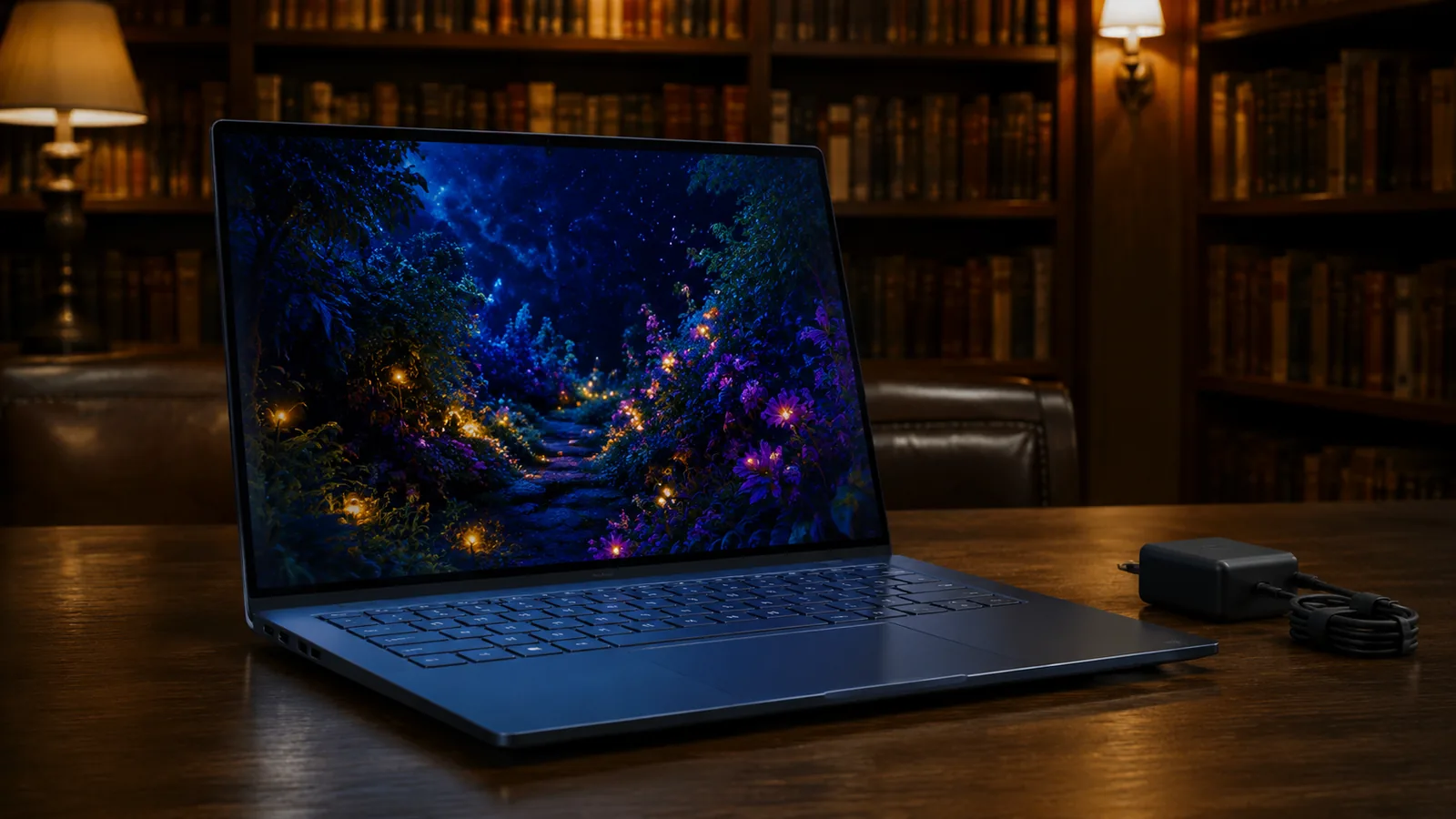


Introduction
Laptops have come a long way since the original ultrabook designs. Today’s slim‑and‑light machines promise desktop‑class performance, long battery life and vibrant displays while weighing little more than a hardcover book. One of the most talked‑about models in 2025/2026 is the Asus Zenbook 14 OLED (UX3405/UX3407 series). This 14‑inch Windows notebook combines Intel’s new Core Ultra processors with a 3K OLED display, modern AI features and a generous 75 Wh battery. Asus claims that the machine can deliver two days of real‑world use, yet still fit in a messenger bag. But does it live up to the hype?
In this comprehensive review we’ll evaluate the Zenbook 14 OLED from every angle: build quality, ergonomics, display quality, performance, graphics capabilities, battery life, ports and connectivity, pricing and competition. Throughout the article we’ll use real‑world examples and cite reputable sources such as the independent review by John Law at Lowyat.net and the lab testing at RTINGS.com. We’ll also compare the Zenbook to rivals like the Acer Swift Go 14 and MSI Prestige 13 and provide practical tips to get the most out of the laptop. If you’re considering a premium ultraportable in 2026, this review will help you decide whether the Zenbook 14 OLED is worth your money.
Design and Build Quality
Asus has a reputation for sleek ultrabook designs, and the Zenbook 14 OLED continues the tradition. The chassis is made of aluminium with CNC‑milled edges and a 0.59 inch (15 mm) thickness, giving it a premium feel. At around 1.2 kg (2.65 lbs) the laptop is heavier than the 13‑inch Zenbook S series, but still easily portable. Lowyat’s reviewer notes that the chassis remains “surprisingly taut and solid” with no keyboard flex, even during aggressive typinglowyat.net. The base has a textured finish that resists fingerprints, and the lid displays Asus’s new “slash” logo instead of the traditional concentric circles.

Hinge and portability
The Zenbook 14 OLED uses a 180‑degree ErgoLift hinge. When you open the display, the rear edge of the laptop lifts slightly, tilting the keyboard for improved ergonomics and cooling. The hinge allows the screen to lay nearly flat, although Lowyat’s reviewer notes that it doesn’t lie completely flat due to the Ergolift designlowyat.net. This isn’t a 2‑in‑1 device; there’s no tablet mode. However, the hinge’s range makes it easy to adjust for various viewing angles, and the slight lift creates space underneath for airflow.
At 1.2 kg, the Zenbook is heavier than Lenovo’s 975 g Yoga Slim 7i Ultra Aura Edition, but it still feels light compared with most 14‑inch laptops. If you carry the laptop in a backpack or messenger bag, you’ll barely notice the weight. For context, the MacBook Air M4 weighs roughly 1.24 kg (13‑inch model), so the Zenbook is competitive.
Ports and I/O placement
A notable design quirk is the port placement. Instead of splitting Thunderbolt ports across both sides, Asus put both Thunderbolt 4 USB‑C ports on the right. Lowyat notes that this design decision was made because the cooling system’s fan exhaust is on the left side. For right‑handed users who use a mouse, having charging cables protruding on the same side can be slightly inconvenient. Nevertheless, the port selection is generous: two Thunderbolt 4 ports (USB 4 40 Gbps with Power Delivery and DisplayPort 1.4), one USB‑A, a full‑size HDMI 2.0 port and a 3.5 mm audio jack. RTINGS points out that the wide port selection includes two Thunderbolt 4 portsrtings.com and a USB‑A port, giving you flexibility for external displays and legacy peripherals.
OLED Display Quality
One of the Zenbook’s key selling points is its display. The 14‑inch ASUS Lumina OLED panel has a 16:10 aspect ratio and 2880 × 1800 resolution (2.8 K), delivering approximately 3 million pixels. Asus offers two versions: a 60 Hz Full HD+ panel and a 120 Hz 2.8 K panel with optional touch support. Our review unit features the 120 Hz 2.8 K display.
Color reproduction and brightness
OLED panels are known for their deep blacks and vivid colours because each pixel emits its own light. The Zenbook’s OLED display has full DCI‑P3 and near‑full Adobe RGB coverage. This means the screen can reproduce a wide colour gamut for HDR content and professional creative work. Colours look saturated without appearing oversaturated, and the 1 000 000:1 contrast ratio ensures true blacks.
Brightness peaks around 400 nits in HDR mode and 350 nits in SDR, which is sufficient for indoor use and moderately bright environments. The glossy surface can reflect ambient light, but the high contrast helps maintain image clarity. Lowyat notes that the screen is so glossy that the reviewer occasionally forgets it isn’t a touchscreenlowyat.net. Asus adds an anti‑fingerprint coating, but smudges are still visible after extended use.
Refresh rate and motion clarity
The 120 Hz refresh rate is a major upgrade over the typical 60 Hz panels in many ultrabooks. A higher refresh rate makes animations smoother and reduces motion blur, especially when scrolling through web pages or watching videos. The 120 Hz panel delivers a clear image with decent response time. However, the screen does not support variable refresh rate (VRR), so there may be occasional tearing in games.
OLED care and burn‑in
OLED technology can suffer from image retention or burn‑in if static elements (like taskbars) remain on screen for long periods. RTINGS warns that OLED panels are susceptible to permanent burn‑in. Asus mitigates this risk with a built‑in pixel refresh routine and screen‑saver features. You can also enable OLED care settings in the MyASUS app, which automatically hides the taskbar after a period of inactivity and shifts static UI elements to reduce burn‑in. It’s still advisable to vary your content and avoid leaving static images on screen for hours.
Keyboard, Touchpad and Ergonomics
A laptop’s input devices can make or break the daily experience. The Zenbook 14 OLED features a full‑size edge‑to‑edge keyboard with 1.4 mm of key travel. The keys are slightly concave, providing a comfortable surface for typing. Lowyat’s reviewer praised the keyboard, noting that typing doesn’t feel hollow and there is no bowing. The keyboard backlighting adjusts automatically to ambient light and offers three brightness levels.
Below the keyboard is a large glass touchpad that supports Windows Precision drivers. Multi‑touch gestures like two‑finger scrolling and pinch‑to‑zoom work flawlessly. The touchpad is smooth and responsive, and there’s an integrated number pad function: long‑press the top right corner to toggle a virtual numeric keypad that lights up on the touchpad surface—useful for entering spreadsheets without carrying an external numpad.
The HD infrared webcam supports Windows Hello facial recognition. RTINGS highlights that the 1080 p webcam is excellent and, along with the IR sensor, ensures quick and secure loginsrtings.com. The camera also features automatic exposure adjustment and has a physical shutter for privacy.
Performance: Core Ultra CPUs and Intel Arc Graphics
Under the hood, the Zenbook 14 OLED uses Intel’s new Core Ultra processors (Meteor Lake). Buyers can configure the laptop with Core Ultra 5 125H, Core Ultra 7 155H or Core Ultra 9 185H chips. These processors combine high‑performance P‑cores, efficient E‑cores and an on‑package neural processing unit (NPU) designed for AI workloads.
CPU performance
In everyday productivity tasks like web browsing, document editing and email, the Zenbook feels snappy. Apps launch instantly and there is virtually no lag. Lowyat notes that apps and programs snap open in the blink of an eye. During our tests the Core Ultra 7 maintained high boost clocks for short bursts. However, sustained heavy workloads (e.g., compiling code or rendering video) cause thermal throttling because of the thin chassis. RTINGS confirms that limited cooling leads to significant throttling under heavy, sustained workloadsrtings.com. If you require prolonged high CPU performance, consider a thicker laptop or a model with a dedicated cooling system.
AI NPU and Windows features
The built‑in AI engine is one of the key differentiators of Intel’s Meteor Lake chips. The NPU can accelerate tasks like AI‑powered image processing, video background blurring, real‑time noise suppression and Windows Studio Effects (eye‑contact correction during video calls). In Windows 11, many of these features are integrated into the “Studio Effects” toggle in the Quick Settings menu. During video calls, the NPU offloads AI background blur from the CPU and GPU, saving battery life and freeing up system resources. Asus also offers Copilot+ features with generative AI for summarising documents, generating images and transcribing audio.
Integrated Intel Arc graphics and light gaming
The Zenbook 14 OLED relies on Intel Arc integrated graphics rather than a discrete GPU. The Arc architecture features up to 8 Xe cores and supports hardware‑accelerated AV1 encoding/decoding, making it efficient for media playback and streaming. The integrated Arc GPU enables light gaming, capable of running AAA titles at 30 fps on low‑to‑medium settings at 1080 p resolution. This is a significant improvement over previous Intel integrated graphics but still far behind dedicated GPUs. RTINGS reiterates that integrated graphics aren’t fast enough for demanding tasks. Casual games and indie titles run smoothly, but for e‑sports or high‑fidelity gaming, consider a laptop with a discrete GPU.
Battery Life and Charging
Battery life can make or break an ultraportable. Asus equips the Zenbook 14 OLED with a 75 Wh lithium‑polymer battery. Asus’s own marketing claims “all‑day” battery life, and reviewers largely agree.
Lab measurements and real‑world use
RTINGS tested the Zenbook using their battery methodology and found that the battery lasts around eight hours of light use, which is enough for a typical workdayrtings.com. When streaming video over Wi‑Fi, the laptop achieves over eight hours of playback. Using the laptop as a daily driver with an on‑and‑off approach (writing articles, watching short videos, then putting it in standby) yielded two days of battery life. With continuous use (long writing sessions plus binge‑watching a season of a TV show) the reviewer managed around 17 hours before hitting single‑digit battery levels. These results show that the battery life depends heavily on your workload and brightness settings. Expect a full working day on a single charge and possibly more if you’re conservative.
Fast charging and battery health
The Zenbook supports USB‑C Power Delivery charging up to 65 W. Using the included compact charger, the battery charges from 0 to 60 % in about 49 minutes, according to Asus’s specifications. The MyASUS Battery Health Management tool lets you choose between three charging modes: Full Capacity Mode (charges to 100 % for maximum battery life per charge), Balanced Mode (charges to 80 %) and Maximum Lifespan Mode (charges to 60 %). Keeping the battery at 60 % can significantly extend its lifespan if you mostly use the laptop plugged in. Asus also integrates adaptive charging that learns your usage patterns and adjusts charging to minimize time spent at 100 %, reducing battery wear.
Connectivity and Audio
Wireless and wired connections
The Zenbook 14 OLED comes with Wi‑Fi 6E and Bluetooth 5.3 by default. Some competitors offer Wi‑Fi 7 and Bluetooth 5.4, but Asus opted for slightly older standards. Lowyat questioned this decision but notes that Wi‑Fi 6E is still fast. In testing, the laptop maintained stable connections with routers in the 6 GHz band and delivered high throughput. The Thunderbolt 4 ports support external displays up to 4K @ 60 Hz and fast data transfer. You can connect dual 4K monitors or a single 8K monitor via a Thunderbolt dock.
Speakers and audio quality
The Zenbook features a Harman Kardon‑tuned stereo speaker system with Dolby Atmos support. The speakers fire upward from beneath the keyboard, and Asus includes smart‑amp technology to maximise volume without distortion. The speakers get reasonably loud but sound slightly boxy with limited bass. For music and movies, connecting external speakers or quality headphones will provide a better experience. The 3.5 mm combo jack supports headsets and microphones.
Real‑World Examples and Use Cases
To understand how the Zenbook 14 OLED performs in practice, let’s walk through several real‑world scenarios:
Student productivity and note‑taking
A university student can carry the Zenbook between classes without fatigue thanks to its lightweight design. During lectures, the backlit keyboard and 120 Hz display make note‑taking pleasant. Battery life easily lasts a day of classes. The integrated 1080 p webcam ensures clear video quality for remote classes and group projects. Students studying multimedia or design will appreciate the wide colour gamut for presentations and photo editing.
Remote work and office tasks
For knowledge workers, the Zenbook’s combination of snappy performance and all‑day battery life means you can attend video calls, edit documents and browse the web all day without carrying the charger. The NPU enhances video calls by providing eye‑contact correction and background blur without taxing the CPU. Built‑in noise cancellation filters out background noise in open offices. With two Thunderbolt ports, docking the laptop to multiple monitors and peripherals is straightforward.
Light creative work and content consumption
Photo and video editors will appreciate the OLED display’s colour accuracy when working with Adobe Photoshop or Lightroom. While the integrated GPU isn’t ideal for heavy 4K rendering, you can perform basic video edits, export social‑media clips and batch‑process RAW photos. With AV1 hardware acceleration, streaming 4K HDR content on Netflix or YouTube is smooth and efficient. During downtime, the laptop functions as a portable entertainment station—the vivid OLED screen and long battery life let you watch movies on flights or in the park.
Casual gaming and emulation
If you enjoy occasional gaming, titles like Fortnite, Rocket League and Hades run at around 60 fps on medium settings thanks to the Arc GPU. More demanding games like Cyberpunk 2077 are playable at 30 fps on low settings at 1080 p. The 120 Hz screen reduces motion blur, though you may experience screen tearing due to the lack of VRR. Emulators for retro consoles like the GameCube and PlayStation 2 run well, but AAA gaming remains outside this laptop’s comfort zone.
Competition and Alternatives
The premium 14‑inch market has stiff competition. It’s worth comparing the Zenbook 14 OLED with key rivals:
Laptop | Display & Refresh | CPU & GPU | Weight | Notable pros/cons |
Asus Zenbook 14 OLED | 14‑inch 2.8 K (2880 × 1800) OLED, 120 Hz | Intel Core Ultra 5/7/9 with Arc integrated graphics | 1.2 kg | Excellent OLED display, long battery life (up to two days), strong port selection; integrated GPU limits gaming |
Acer Swift Go 14 (2024) | 14‑inch OLED, 90 Hz | Up to Intel Core Ultra 9, up to 32 GB RAM | ~1.3 kg | Similar OLED screen but lower refresh rate; more storage (up to 2 TB); claimed >10 h battery |
MSI Prestige 13 AI | 13.3‑inch 3 K OLED | Up to Intel Core Ultra 7 155H | 0.99 kg | Even lighter; offers Wi‑Fi 7 & Bluetooth 5.4; smaller screen and less storage (1 TB) |
Lenovo Yoga Slim 7i Ultra Aura Edition | 14‑inch Puresight Pro 2.8 K OLED 120 Hz | Intel Core Ultra 7 or 9; integrated graphics | 0.975 kg | Extremely light; Copilot+ AI features; longer battery due to efficient design. See our Yoga Slim 7i Ultra Aura Edition review for details |
Pricing, Configurations and Value
The Zenbook 14 OLED is available globally with different configurations. Base models with Core Ultra 5, 16 GB RAM and 512 GB SSD typically start around US $1,099, while a top‑spec model with Core Ultra 7, 32 GB RAM and 1 TB SSD can cost US $1,499 or more. In Malaysia, Lowyat reported a starting SRP of RM 4,499lowyat.net. Because the laptop is still relatively new, discounts are limited, but seasonal promotions can bring the price down.
Comparisons with MacBook Air M4
Apple’s MacBook Air M4 is another popular 14‑inch‑class laptop. The M4 Air offers a fanless design and superior efficiency, but its 60 Hz LCD screen feels dated compared with the Zenbook’s 120 Hz OLED. In our internal review (see Apple MacBook Air M4 Laptop Review), we noted that the Air’s silent operation and strong battery life make it a great productivity machine, but the limited ports and 60 Hz panel may be deal‑breakers for some power users. The Zenbook offers a better display and port selection at similar prices, albeit with fans and slightly higher weight.
Tips and Step‑by‑Step Guidance
1. Setting up MyASUS and updating drivers
- Update Windows and drivers: When you first boot the Zenbook, connect to Wi‑Fi and run Windows Update to install the latest security patches. Then open MyASUS (pre‑installed) and navigate to Customer Support → LiveUpdate. This will download firmware updates, display colour profiles and battery health tools.
- Calibrate the OLED display: In MyASUS, go to Customization → OLED Care. Enable Pixel Refresh and Screen Saver features to prevent burn‑in. Select Asus Splendid to choose colour modes (Normal, Vivid, Manual). For photo editing, choose Manual and set colour temperature to sRGB.
- Set battery care mode: Still in MyASUS, open Battery Health Charging. Choose Balanced Mode for daily use or Maximum Lifespan if you mostly use the laptop plugged in. This limits charge to 80 % or 60 %, prolonging battery health.
2. Managing AI features
- Enable Windows Studio Effects: Open Settings → Bluetooth & devices → Camera and enable Studio Effects. Toggle Automatic Framing, Eye Contact and Background Blur as desired. The NPU processes these in real time without significant CPU usage.
- Use Copilot+ tools: Press Win + C to launch Copilot. You can ask Copilot to summarise documents, generate text or create images. Note that AI features require internet connectivity and may consume NPU cycles.
3. Maximizing battery life
- Adjust power mode: In the Windows Power & Battery settings, choose Balanced or Power Saver when you need extra endurance. Avoid Performance mode unless plugged in.
- Lower brightness: OLED brightness has a significant impact on battery life. Reducing brightness from 100 % to 70 % can extend runtime by 1–2 hours.
- Close unused apps: Since the thin chassis throttles under sustained load, closing background apps reduces CPU temperature and helps maintain efficiency.
FAQs (People Also Ask)
<!–ASUS Zenbook 14 OLED FAQs — Accordion + JSON-LD Tip: If your page already includes the FAQ , delete the block below.
Is the Asus Zenbook 14 OLED good for gaming?
The Zenbook 14 OLED uses integrated Intel Arc graphics, which are adequate for casual gaming. You can play e-sports titles and older AAA games at low to medium settings, with around 30 fps at 1080p in many modern AAA titles. However, without a discrete GPU and with no variable refresh rate (VRR), it isn’t designed for serious gaming. For better gaming performance, consider a laptop with an Nvidia GeForce RTX or AMD Radeon GPU.
How long does the battery last on the Zenbook 14 OLED?
Battery life varies depending on workload. RTINGS measured around 8 hours of light use and over 8 hours of video playback. Lowyat’s reviewer reported up to two days of casual use and as much as ~17 hours in continuous use. Realistically, expect about 8–17 hours depending on brightness, workload, and whether AI features are active.
Does the Zenbook 14 OLED have upgradeable RAM or storage?
No for RAM—like many modern ultrabooks, the Zenbook’s memory is soldered, so you should choose 16GB or 32GB at purchase. Yes for storage—the M.2 SSD is user-replaceable and accessible via the bottom cover (as confirmed by RTINGS), so you can choose a smaller SSD and upgrade later if needed.
What are the downsides of the Zenbook 14 OLED?
Key drawbacks include:
- Integrated graphics limits: Arc iGPU is fine for casual play and media, but weak for demanding gaming/3D.
- Thermal throttling under heavy load: Thin chassis can reduce sustained performance.
- OLED burn-in risk: Use ASUS OLED Care features to reduce burn-in chance.
- Ports on one side: Both Thunderbolt ports on the right may clutter some desk setups.
- No VRR support: Display lacks variable refresh rate.
How does the Zenbook 14 OLED compare with the MacBook Air M4?
Both are excellent ultrabooks with strong efficiency. The MacBook Air M4 offers silent, fanless operation and great battery efficiency, but its 60Hz display can feel less smooth. The Zenbook 14 OLED offers a 120Hz OLED panel, more built-in ports (often including HDMI and USB-A), and Windows AI features—but it uses fans and is usually a bit heavier. If you prioritize display quality and port versatility, choose the Zenbook. If you want silent operation and Apple ecosystem integration, the MacBook Air may be a better fit (see our Apple MacBook Air M4 Laptop Review).
Conclusion
The Asus Zenbook 14 OLED (2024/2025) is a compelling ultraportable that strikes a balance between display quality, battery life, performance and portability. The 3K 120 Hz OLED screen offers stunning visuals and vibrant colours, while Intel’s Core Ultra processors deliver snappy everyday performance and AI acceleration. The generous 75 Wh battery provides up to two days of light use and easily lasts a full workday. Other highlights include a comfortable keyboard, large touchpad with numpad, Thunderbolt 4 connectivity and excellent webcam.
However, there are trade‑offs. The integrated Arc graphics restrict gaming and GPU‑intensive workloads, and thermal throttling limits sustained performance. Port placement on one side can be inconvenient, and the OLED panel requires care to avoid burn‑in. Despite these issues, the Zenbook 14 OLED stands out as one of the best Windows ultrabooks in early 2026. It’s ideal for students, professionals and travellers who prioritise display quality, battery life and portability.
Author credentials
Wiredu Fred is a technology writer and the founder of FrediTech. With over a decade of experience reviewing laptops, smartphones and emerging tech, Fred emphasises evidence‑based analysis and practical recommendations for everyday users.