

Introduction
Smart plugs – also known as smart outlets – are one of the easiest ways to start automating your home. These handy adapters plug into a standard wall socket and let you control whatever is plugged into them using your smartphone or voice commands. With a smart plug, you can schedule lamps to turn on at sunset, remotely switch off a curling iron you left on, or monitor how much power your coffee maker uses. It’s no surprise that smart plugs have quickly become popular: by 2025, roughly one-third of smart homes were already using smart plugs or smart outlets to add convenience and cut down on wasted energyfreditech.com. In fact, utility companies note that smart plugs can help eliminate “vampire” power draw by turning off appliances that aren’t in usecenterpointenergy.com, potentially saving you money on your electric bills.
But not all smart plugs are created equal. Before you buy one, it’s important to know what to look for so you get a device that fits your needs and works safely in your home. Key factors to consider include the wattage or power rating (to make sure it can handle your device’s electrical load), the Wi-Fi or hub connectivity (so it works with your network and smart home system), and the app or platform integration (to ensure it’s easy to control and has the features you want). You’ll also want to think about other details like whether you need energy monitoring, if it’s for indoor or outdoor use, and if the plug supports voice assistants like Alexa, Google Assistant, or Siri.
In this comprehensive buying guide, we’ll break down all these considerations step by step. You’ll learn exactly what to check before purchasing a smart plug – from electrical specs and wireless requirements to app capabilities and safety certifications – with real-world examples and tips along the way. Let’s dive in and make sure you choose the perfect smart plug for your home!
/* Scoped styles under #ad-wrapper to avoid global impact */ #ad-wrapper { max-width: 100%; margin: 20px auto; box-shadow: 0 2px 6px rgba(0,0,0,0.1); border-radius: 4px; overflow: hidden; font-family: Arial, sans-serif; } #ad-wrapper .ad-grid { display: flex; flex-wrap: wrap; gap: 5px; justify-content: space-between; padding: 10px; background: #fff; border: 1px solid #ddd; border-bottom: none; } #ad-wrapper .ad-grid a { flex: 1 0 18%; /* 5 per row */ max-width: 18%; text-align: center; } #ad-wrapper .ad-grid img { width: 100%; height: auto; display: block; border-radius: 4px; transition: transform 0.2s ease; } #ad-wrapper .ad-grid a:hover img { transform: scale(1.05); } #ad-wrapper .ad-footer { display: flex; align-items: center; padding: 8px 12px; background: #f9f9f9; border-top: 1px solid #ddd; } #ad-wrapper .ad-footer img { height: 14px; margin-right: 8px; display: block; } #ad-wrapper .ad-footer span { font-size: 13px; color: #555; line-height: 1; } /* Responsive breakpoints */ @media (max-width: 900px) { /* 4 per row */ #ad-wrapper .ad-grid a { flex: 1 0 30%; max-width: 30%; } } @media (max-width: 600px) { /* 2 per row, reduced size for mobile */ #ad-wrapper .ad-grid a { flex: 1 0 40%; max-width: 40%; } } @media (max-width: 400px) { /* 2 per row, reduced size for mobile */ #ad-wrapper .ad-grid a { flex: 1 0 40%; max-width: 40%; } }


 Sponsored Ad – Amazon.com
Understanding Smart Plugs and Their Benefits
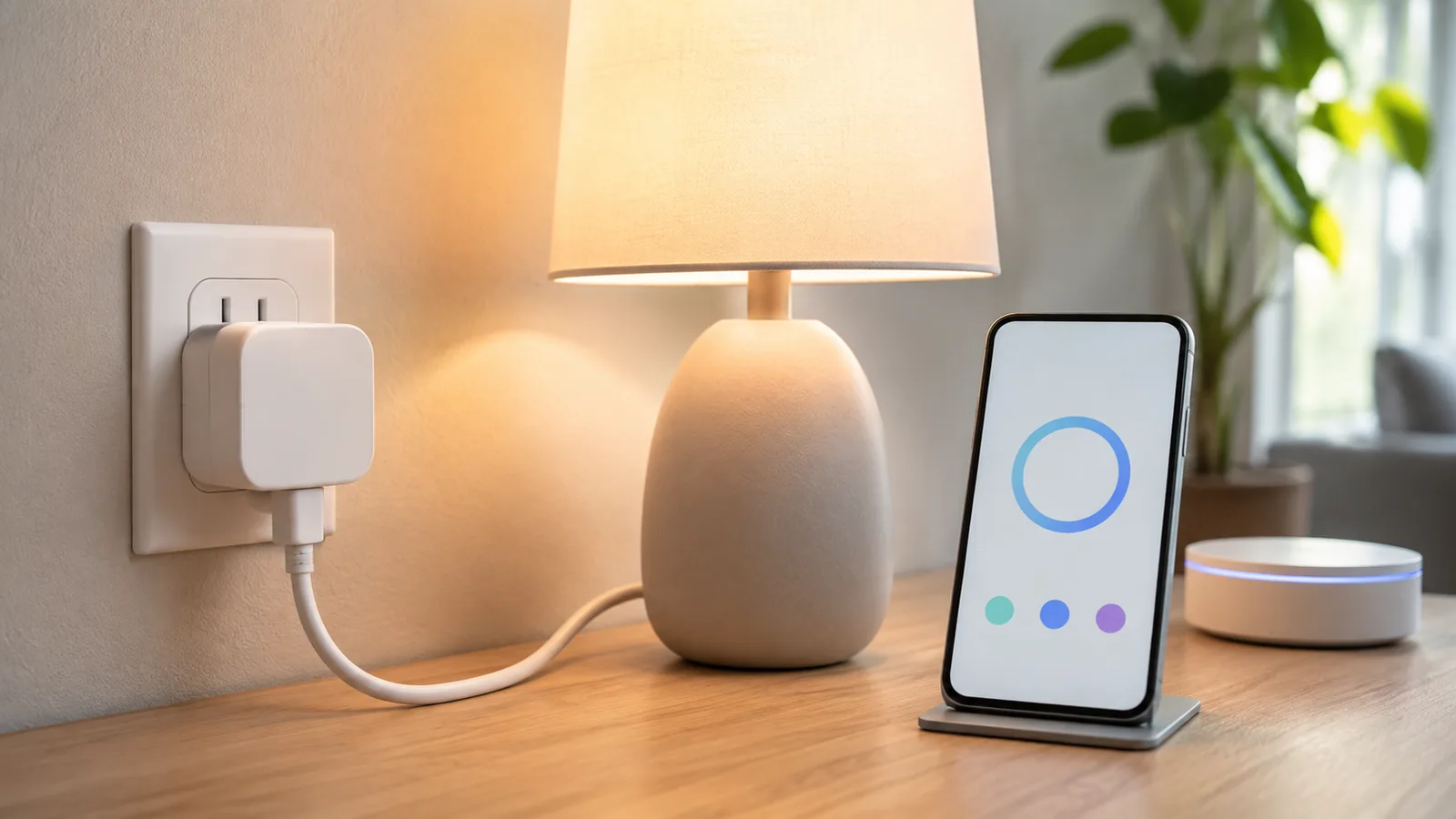
A typical Wi-Fi smart plug (Belkin Wemo Mini) allows you to control a lamp or appliance via an app or voice assistant.
A smart plug is a small adapter that fits between your appliance’s power cord and the wall outlet, acting as a wireless on/off switch. Once connected to your Wi-Fi (or smart home hub), the smart plug can be controlled remotely through a smartphone app or integrated with voice assistants. In essence, it turns any ordinary device – like a lamp, fan, coffee maker, or space heater – into a “smart” device that you can toggle on a schedule or with a simple voice command (“Alexa, turn on the fan”). This offers a new level of convenience and automation. For example, you could set up an evening routine where at 10:00 PM your smart plug automatically switches off the living room lamp and space heater, ensuring you never leave them running overnight.
One of the biggest benefits of using smart plugs is energy savings and safety. Many electronics draw power even when turned off (often called standby power or phantom load). Smart plugs let you completely cut power to devices when they’re not needed, eliminating this wasted electricity. According to CenterPoint Energy, automatically turning off “vampire” appliances with smart plugs can reduce electricity consumption from those devicescenterpointenergy.com. For instance, a TV or game console plugged into a smart outlet can be scheduled to turn off at midnight, so it isn’t quietly drawing power all night. Over time, this can trim your energy bills. It also offers peace of mind – you can confirm from your phone that you turned off the iron or space heater, or even have the plug shut it off for you after an hour as a safety measure.
Smart plugs are also incredibly easy to use. There’s no complex installation – you literally plug it into the wall and connect it to an app. This simplicity makes them a popular entry point into smart homes. In fact, surveys show smart plugs/outlets are among the first smart gadgets people try, thanks to their ease of use and quick benefitsfreditech.com. If you’re new to smart home tech, a smart plug is a low-cost, low-risk way to dip your toes in automation. And if you already have other smart devices, smart plugs can integrate seamlessly into your routines (for example, having your smart speaker announce the weather while the smart plug turns on your espresso machine each morning).
To summarize, smart plugs bring a combination of convenience, energy efficiency, and control to your everyday appliances. However, to get the most out of a smart plug, you need to choose one that matches your technical requirements and usage. In the next sections, we’ll detail exactly what to check before you buy a smart plug, starting with the most critical factor – making sure it can handle the electrical wattage of your device.
Wattage and Power Rating: Don’t Overload Your Smart Plug
One of the first things to check on any smart plug is its power rating – how many amps or watts it can safely handle. Every smart plug will have a maximum load specification (e.g. “Max 15A, 1800W” for many North American plugs). This tells you the highest electrical current it supports. Why is this important? Because if you plug in a device that draws more power than the smart plug is rated for, you risk tripping the plug, or worse, overheating it and creating a fire hazardjustanswer.com.
For standard indoor smart plugs in the U.S., a typical rating is 120 volts, 15 amps, which equals about 1800 watts maximum load (since Watts = Volts × Amps). For example, TP-Link’s Tapo outdoor smart plug is rated at 120V/15A (up to 1875W)tomsguide.com. This capacity covers most household lamps, chargers, computers, and even many kitchen appliances. However, high-wattage appliances like space heaters, hair dryers, microwave ovens, or air conditioners often draw close to 1500–1800W, which is at the upper limit of a 15A smart plug. If you plan to use a smart plug with a heater, AC unit, or other heavy appliance, it’s crucial to verify that the plug’s maximum continuous load (in amps or watts) meets or exceeds your device’s requirementjustanswer.com. As an example, a 1500W space heater pulls about 12.5A on a 120V circuit – near the 15A limit – so you’d want a smart plug explicitly rated for that load and monitor it the first few times for any excessive heat buildup. Many manufacturers advise against using smart plugs with high-power motors or heating devices unless the plug is “heavy-duty” and has built-in overcurrent protection.
In regions with 230V outlets (such as Europe, Asia, Africa), smart plugs typically support 10A to 16A (which equates to about 2300W to 3680W). For instance, a Matter-certified EU smart plug might be rated 250V, 16A, up to 3680Wmoeshouse.com. Always check the specifications for your local voltage. If a plug is labeled “Max 10A 250V,” that means roughly 2500W max load. If it says “16A”, it can handle up to ~3600W. Ensure your appliance’s wattage is below that threshold. It’s worth noting that some smart plugs are designed specifically for high-power use – there are models advertised as 15A/16A “heavy duty” smart plugs intended for space heaters, air conditioners, or even pool pumpsandroidcentral.com. If you need to control a heavy appliance regularly, look for those specialty plugs (or consider a smart wall switch or outlet professionally installed for very high loads).
Practical tip: Check the device you want to plug in for its wattage or amperage (usually printed on a label or in the manual). Choose a smart plug with an equal or higher rating. Never daisy-chain multiple high-power devices on one plug via extension cords or power strips. Also, look for safety features like overload protection. Some quality smart plugs have an internal fuse or circuit breaker that will cut power if you exceed the limitmeshsmarthome.com. This is a great feature for peace of mind – it means the plug will turn itself off rather than overheat if something goes wrong. We’ll talk more about certifications and safety in a later section, but from a wattage perspective, the bottom line is: match the plug to your appliance’s power needs. When in doubt, choose a plug with a higher amp rating than you think you’ll need, and avoid pushing any plug to its absolute maximum for long periods.
Wi-Fi Connectivity and Network Compatibility
Another crucial aspect to consider is how the smart plug connects and whether it will work with your home network. The majority of smart plugs on the market today communicate via Wi-Fi on the 2.4 GHz bandmeshsmarthome.com. It’s important to know two things: (1) what type of network your plug requires, and (2) whether your router supports that. Most Wi-Fi smart plugs are 2.4 GHz only, meaning they will not connect to a 5 GHz-only Wi-Fi network. This is because 2.4 GHz Wi-Fi offers better range and penetration through walls, and smart home devices don’t need high bandwidth – even older 802.11n speeds are plenty for sending on/off commandsandroidcentral.com. So manufacturers stick with 2.4 GHz for simplicity and range. If you have a newer dual-band or tri-band router, this usually isn’t an issue – the router will broadcast both 2.4G and 5G, and your smart plug will find the 2.4G signal. However, if you have a mesh Wi-Fi system or a router that uses a single SSID for both bands, sometimes smart plugs struggle during setup (they might see the combined network and get confused). A quick fix is to temporarily enable a dedicated 2.4 GHz network name for setup, or move far enough from the router that your phone and plug use 2.4 GHz during pairingreddit.com. Some newer plugs and routers have gotten smarter about this, but it’s a common hiccup.
What if you only have a 5 GHz Wi-Fi (rare, but a few providers or router settings might)? In that case, you’ll need a dual-band compatible plug. As of mid-2020s, these are still uncommon but starting to appear. For example, Broadlink released a dual-band smart plug that supports connecting on 5 GHz Wi-Fi (while still being backward compatible with 2.4 GHz). A few other brands like NOUS and Meross also offer “Wi-Fi 6” smart plugs that can use 5 GHzamazon.com. If you really cannot use 2.4 GHz at your home, seek out one of those specialty models – but for most people, sticking to 2.4 GHz is fine and even preferable for the better coverage. Keep in mind, the range of the smart plug’s Wi-Fi is a factor if you plan to use it in a far corner of your house or outside. Check if the manufacturer mentions range – e.g., TP-Link’s outdoor plug boasts up to a 300 ft Wi-Fi range in open spacetomsguide.com. Real-world range will be less with walls, but if you have a distant garage or garden device, you might need a Wi-Fi extender or a plug known for strong signal reception.
Besides Wi-Fi, there are smart plugs that use other wireless protocols. Some plugs operate over Zigbee or Z-Wave, which are common smart home mesh networks. These require a compatible hub or gateway in your home (for example, Samsung SmartThings, Hubitat, or even an Amazon Echo with built-in Zigbee can act as a hub). If you already have a smart home hub, Zigbee/Z-Wave plugs are great because they don’t clutter your Wi-Fi and often have very fast, local response. They form a mesh network that can be more reliable when you have many devices. For instance, an Innr Zigbee Smart Plug (15A) can connect through a Zigbee hub and works with Alexa, Google, and SmartThings while supporting full 15A load and energy monitoringandroidcentral.com. The catch is the extra hub requirement – some devices like IKEA’s Tradfri smart plugs need IKEA’s gateway to work with Alexa or HomeKit. So, if you go the Zigbee route, factor in that you’ll need a hub (unless you already run something like an Echo 4th Gen, which includes a basic Zigbee hub).
There are also emerging standards like Matter and Thread. Matter is a new interoperability standard supported by Apple, Google, Amazon and others, which aims to let smart devices communicate regardless of brand. A Matter-compatible smart plug might connect via Wi-Fi or via Thread (a low-power mesh network), but importantly it can be controlled by any Matter-certified controller (Apple Home app, Google Home, Alexa, etc.) without needing brand-specific cloud accounts. If future-proofing is important, you might consider a Matter-enabled smart plug. Many Matter plugs use Thread for connectivity, which does require a Thread border router (for example, a Nest Hub or Apple HomePod can serve that role). This is a bit advanced, but the takeaway is: check the connectivity requirements on the smart plug’s box. If it says “Wi-Fi” (it almost always means 2.4 GHz Wi-Fi), make sure your network can accommodate that. If it says “Zigbee” or “Z-Wave”, ensure you have or are willing to get a compatible hub. If it says “Bluetooth only,” be aware that you’ll only be able to control it when you’re in Bluetooth range (few plugs use Bluetooth except as an assisted setup for Wi-Fi). And if it lists Matter/Thread, make sure you have a Matter controller in your home (many new smart speakers/hubs include this).
Pro Tip: If you plan to install dozens of smart plugs and devices, too many Wi-Fi gadgets can tax older routers (each device takes an IP address and a bit of bandwidth). In that case, using a mix of Zigbee/Matter devices might be wise to offload traffic to a dedicated hub. Alternatively, upgrade to a robust router that can handle many IoT clients. But average users with a modern router and a handful of smart plugs usually have no trouble. Just avoid connecting a smart plug to a public Wi-Fi or a network that requires web portal logins (they won’t work there).
Sponsored Ad – Amazon.comSmart App and Platform Compatibility
When evaluating a smart plug, don’t overlook the software side of things – namely, the mobile app and the platform compatibility. This determines how you will interact with the plug daily, and whether it plays nicely with your other smart home devices.
Companion App
Every smart plug comes with a recommended smartphone app (e.g., Kasa app for TP-Link plugs, Wemo app for Belkin plugs, or a generic Smart Life app for many third-party plugs). It’s worth checking the app’s reputation: is it well-reviewed for reliability and ease of use? An app that constantly crashes or has a confusing interface will make your smart plug a pain rather than a convenience. Look for features in the app like: easy scheduling, timers, grouping, and remote access (pretty standard on most). Some apps provide nice extras like consumption history (for energy-monitoring plugs), notification alerts (e.g., if a device turns on or off), or integration with voice assistants and automation services. If you’re buying an off-brand budget smart plug that uses a platform like Tuya/Smart Life, know that the same Smart Life app can control many devices from different brands – which is convenient if you have multiple gadgets. The upside of popular apps like Tuya or Smart Life is a broad device ecosystem and decent cloud reliability. The downside is maybe a less polished interface or concerns about data privacy (these apps often connect to cloud servers in various countries). Tip: Try to find out if the plug requires creating an account on the app (most do for out-of-home control) and what data it might collect.
Voice Assistant and Ecosystem Integration
Check what the smart plug “Works With”. The box or description will usually have badges like Works with Alexa, Google Assistant, Siri (HomeKit), SmartThings, IFTTT, etc. If you primarily use Amazon Alexa for home control, you’ll want a plug that can be added as an Alexa skill – virtually all major brands (TP-Link Kasa, Wemo, Eufy, Meross, etc.) support Alexa and Google. You can then use voice commands (“Alexa, turn off Outlet 1”) or include the plug in Alexa Routines (for example, an Alexa Routine could turn on a smart plug when a motion sensor detects movement). Google Home integration similarly is common. You’ll link the plug’s app to Google and then be able to say “Hey Google, turn off the coffee maker.”
For Apple HomeKit (Siri) users, the field is narrower. Apple requires a special certification, so only certain models explicitly support HomeKit. Examples include the Eve Energy, certain Meross plugs, Wemo Stage, etc. If HomeKit is a must (controlling through Apple’s Home app or via Siri), ensure the plug’s specs list HomeKit compatibility. A plug that lacks HomeKit can’t be added to the Apple Home app unless you use a workaround bridge like Homebridge (which tech-savvy users sometimes do). Many otherwise excellent smart plugs – such as Wyze Plug or TP-Link’s popular Kasa line – do not support HomeKittomsguide.com. In those cases, you can still use Siri Shortcuts in some instances, but it won’t be as seamless as a true HomeKit device.
If you use Samsung SmartThings or another hub, check for compatibility as well. Zigbee plugs generally show up in SmartThings easily. Wi-Fi plugs may need a cloud integration (e.g., Kasa plugs can link to SmartThings). It’s worth a quick search like “Brand X smart plug SmartThings integration” if that matters to you.
Real-world example
The Wyze Plug is an affordable, popular Wi-Fi smart plug; it works with Alexa and Google Assistant, but it does not work with HomeKit. So, a HomeKit-centric user should opt for a different product. On the other hand, Belkin’s Wemo Smart Plug has versions that support HomeKit natively. Some plugs like Meross offer two versions – one with HomeKit (often a slightly higher price) and one without.
IFTTT and Automation
If you’re into advanced automation, check if the plug can integrate with services like IFTTT (If This Then That). IFTTT support means you can create custom triggers – for example, “If the plug’s energy usage drops (meaning the washing machine finished), then send me a text” or “If my phone’s GPS detects I left home, turn off the smart plug.” Not everyone will use this, but it’s good to know if it’s available.
Lastly, consider how the app controls and manual controls work. Most smart plugs have a physical button on the device itselfmeshsmarthome.com. This lets you turn it on/off manually if your phone isn’t handy – useful if, say, a guest wants to turn on a lamp and you don’t want to whip out your phone. Ensure the plug’s design keeps that button accessible (some are side-mounted, some top). The app should show the real-time on/off status and ideally update quickly. Good apps allow grouping multiple smart plugs together (so you can turn off, say, all bedroom plugs with one tap). Also, check if the app supports multiple users – if your family members want control, can you share access easily?
Privacy and Security
This is a consideration with any IoT device. A reputable brand will release firmware updates to patch security issues and will communicate via encrypted channels. It’s wise to change the default names/passwords and keep the plug’s firmware updated through the app. If you are wary of data, you might choose a brand with a better privacy track record or use the plug on a segregated network (some routers let you isolate IoT devices). While we won’t dive deep into security here, remember that the app is the gateway to your plug – set a strong password on your account and enable two-factor authentication if offered.
In summary, choose a smart plug with an app and integrations that suit your lifestyle. If you’re all-in on voice control, make sure it supports your voice assistant of choice. If you love automation, check for scheduling, away mode, and third-party integration. The goal is that controlling the plug becomes effortless and intuitive, whether through a tap on your phone or a simple voice request.
Scheduling, Timers, and Automation Features
One of the biggest advantages of smart plugs is the ability to automate when they turn on or off. Virtually all smart plug apps include some form of scheduling, but the sophistication can vary. Before buying, consider what kind of scheduling or automation you need and verify the plug/app supports it.
Basic Scheduling
Almost every smart plug will let you set a simple schedule — for example, “Turn ON at 7:00 AM” and “Turn OFF at 7:30 AM”. This is handy for things like lights, coffee makers, or anything you want on a daily routine. Many apps allow multiple schedule entries and different days of the week. Check if the schedule can be customized by day (most do, so you can have, say, different weekend timings). Some advanced plugs even offer astronomical timers like sunrise/sunset triggers – so you could set a porch lamp to turn on at sunset (the app figures out sunset time for your location)meshsmarthome.com.
Timers and Auto-Off
In addition to fixed schedules, many plugs let you use a countdown timer or auto-off feature. For instance, you could manually turn on a heated blanket plugged into a smart outlet, and set it to automatically turn off after 2 hours so it doesn’t stay on all night. This can usually be done in the app with an “auto-off after X time” settingmeshsmarthome.com. It’s great for devices that you only need running for a set duration (like an electric kettle or space heater – for safety, you might want it to cut power after a while).
Away Mode (Vacation Mode)
A popular feature on many smart plugs is Away Mode, which is essentially a randomized on/off cycle to simulate someone being home. For example, in Away Mode your lamp might turn on at slightly different random times each evening, and turn off randomly later, to give the impression of occupancy. Both Wyze and TP-Link/Kasa plugs have this, as do others (sometimes called Vacation Mode). If home security while traveling is a concern, ensure the plug’s app includes an away mode functiontomsguide.com. It’s a simple but effective deterrent against burglars targeting dark homes.
Integration with Other Sensors/Triggers
Depending on your smart home setup, you might want the plug to respond to things besides time of day. For instance, if you have a door sensor or motion sensor in the room, you could have the smart plug turn on a light when motion is detected at night. This typically requires a hub or a platform like Alexa Routines, Google Home routines, or IFTTT as the middleman. Before buying, think about how you might want to use the plug in context. If you’re using Alexa, you can often create routines that include the smart plug (e.g., “When I say ‘Goodnight’, turn off the TV plug and lock the door”). Google Home has similar routines. Apple HomeKit allows automation triggers based on other sensors or your location (e.g., turn off outlets when you leave home). So, if advanced automation is your thing, verify that the plug can be added to those ecosystems (which we covered in the previous section on compatibility).
Multiple Plugs Coordination
Some apps allow you to create scenes or groups of devices. For example, you might group two smart plugs and a smart bulb into a “Living Room” scene that turns everything off at once. Check if the app has a scene feature or if you can at least control multiple plugs together. Alternatively, using a voice assistant like Alexa, you can assign plugs to a group (like “All Lights”) and then one command turns them all off.
Geofencing
A more advanced feature that a few smart home apps support is geofencing – triggering actions when your phone enters or leaves a certain area. A smart plug with geofence could potentially turn on a light when you arrive home and turn it off when you leave. Not all plug apps have built-in geofencing, but you can often achieve it through HomeKit or Alexa/Google routines that use your phone’s location. For instance, the Wyze app supports location triggers for its plug (turning lights on when you’re arriving home, off when you leave)tomsguide.com. If this is something you want, check the app capabilities or plan to use a third-party integration.
In summary, verify the smart plug supports the level of automation you desire. Most will cover the basics (timers and schedules), but if you want features like away mode, randomization, or complex triggers, double-check the product documentation. On the plus side, even if the plug’s native app lacks a certain feature, integrating with a system like Alexa, Google Assistant, or IFTTT often fills the gap. For example, if the plug doesn’t have an away mode, you could set up an IFTTT applet to randomly turn it on/off. If it doesn’t have auto-off, you might use Alexa routines to simulate that. But these are workarounds – it’s nicer if the plug/app does it out of the box.
Most people will find scheduling a smart plug to be extremely useful. You’ll quickly get used to lights that magically turn on when needed or having the fan in your room shut off automatically after you fall asleep. These little automations can improve comfort and save energy without any daily effort on your part.
Energy Monitoring and Power Usage Tracking
If one of your goals is to save energy or understand your power usage, you might want a smart plug with energy monitoring capabilities. Not all smart plugs have this feature, so it’s an important distinction when shopping.
What is energy monitoring?
It means the smart plug can measure how much electricity the connected device is consuming. Typically, in the app you’ll see real-time power (in watts) when the device is on, and often charts or logs of energy usage over time (daily, weekly, monthly kWh consumed). This can be eye-opening – you might discover that your “turned off” game console still draws 5 watts in standby, or that the old mini-fridge in the garage is guzzling a lot of power. Armed with that info, you can take action (like using the smart plug to fully cut power when not needed, or deciding to upgrade an inefficient appliance).
Choosing a plug with monitoring
Common models with energy monitoring include TP-Link Kasa HS110/Tapo P110 series, certain Meross plugs, Aeotec Smart Switch, Eve Energy, etc. When buying, the product description should explicitly mention energy monitoring or power usage tracking if it has it. If it doesn’t say it, assume it’s not included – basic $10 smart plugs often omit this feature to cut cost.
Benefits
With a monitored plug, you can identify energy hogs in your home. For example, plug your space heater into it and run it for an hour – you’ll see how many kilowatt-hours that costs. Some advanced plugs or their apps let you enter your electricity rate to estimate the cost of running the devicemeshsmarthome.com. You can set up alerts or automations based on consumption too. For instance, a user on a forum might ask for a plug that “starts an automation when it reaches a certain wattage” – one use case is detecting when a washing machine or dryer cycle is finished (the machine’s wattage drops, then the plug can trigger an alert). Not all smart plug apps support custom wattage triggers natively, but platforms like Home Assistant or IFTTT can utilize the data if the plug shares it.
Drawbacks
Energy-monitoring plugs tend to be slightly more expensive. Also, they may consume a tiny bit more power themselves for the metering circuitry – but this is usually negligible. A typical smart plug uses only around 1 watt or less on standbymeshsmarthome.com, and maybe 1–2 watts when the relay is on. So the overhead of the plug is very small compared to what you might save by shutting off a 50W device for hours. (In other words, the smart plug doesn’t eat up its own savings; it’s efficient to use.)
If you do get an energy-monitoring plug, take advantage of it by actually reviewing the data. You might discover, for example, that your TV draws 10W in standby – that’s over 5 kWh per month of nothing useful, which could be eliminated by turning off the plug when the TV is idle. Or you may find your aquarium heater spikes at certain times and you can adjust your thermostat around that. It’s a great tool for the energy-conscious and can lead to behavioral changes that reduce consumption.
Integration of data
Some ecosystems aggregate this info nicely. For instance, Samsung SmartThings and Apple HomeKit can show consumption for certain smart plugs in their interface. Third-party services exist to log the data long-term. But even the basic app charts can help you identify patterns (like that space heater uses 0 kWh in summer, but in winter it’s costing $10 a month to run).
As a side note, remember that smart plugs themselves draw a bit of power (for the Wi-Fi radio, LED, etc.). As noted, it’s on the order of a watt. If you only use a smart plug to turn off a phone charger that was drawing 0.2W in idle, you might actually be adding a little usage. So use smart plugs smartly – put them on devices that waste significant standby power or that you truly want to automate. Fortunately, most home gadgets like TVs, entertainment systems, kitchen appliances in standby draw much more than the plug itself, so it’s a net win to have the plug cut them offfreditech.com.
In summary, if insight into your electricity usage matters to you, opt for a smart plug with energy monitoring. It can both inform you and enable automated energy savings. If energy data isn’t a priority, you might save a few bucks with a simpler model – but given the small price difference nowadays, many users find it worthwhile to have the feature available.
Design, Size, and Form Factor Considerations
Smart plugs come in a variety of shapes and sizes. It’s easy to overlook the physical design when buying online, but it can make a difference in how you use the plug (especially if space around your outlet is tight). Here are some design factors to check:
- Size and Outlet Spacing: One common issue is that a smart plug might be bulky enough to block the adjacent socket on a standard wall outlet. If you plan to use two smart plugs in the same duplex outlet or have something else plugged in beside it, look for a compact or slim designmeshsmarthome.com. Many brands advertise “mini” smart plugs which are specifically designed not to overlap the second socket. For example, the Gosund and TP-Link Kasa mini plugs are small enough that you can stack two in one outlet. In contrast, some older or cheaper plugs might be large, covering the whole outlet face. Check product photos and dimensions. A round style plug might block the outlet above it if oriented wrong. Some plugs are rectangular but orient the plug sideways to avoid interfering with the plug above/below.
- Orientation of the Prongs: Some smart plugs have the prongs on the back, while others have a short cord. Outdoor smart plugs often have a short extension cord to reach the outlet. For indoor plugs, if the outlet is behind furniture, a plug that sticks straight out may push your furniture further from the wall. There are smart plugs with a flat design or side-facing outlets that can help in tight spaces. For example, the Amazon Smart Plug is fairly flat against the wall, whereas the Wemo shown earlier sticks out a bit. Think about where you’ll use it – behind a couch, you might want a low-profile plug.
- Manual Power Button: As mentioned earlier, almost every smart plug includes a physical on/off button on the unitmeshsmarthome.com. The placement of this button can matter. If the plug will be under a table or in an awkward spot, you want to ensure you can reach the button if needed. Some plugs have the button on the side, some on top. Also, the LED indicator is usually near the button. Some people find a bright LED annoying (for instance, if you use a smart plug in a bedroom and it has a bright status light). Check reviews or details – a few models allow you to turn off or dim the LED in the app. Otherwise, you might end up putting a piece of tape over a bright LED at night. It’s a small thing, but worth noting.
- Number of Outlets: A standard smart plug controls one outlet. But there are devices that combine multiple outlets. For example, there are smart power strips with 3-6 individually controlled outlets (plus USB ports sometimes). If you have many devices in one area (like an entertainment center), a smart power strip might be more efficient than half a dozen single plugs. TP-Link’s Kasa Power Strip is a good example, offering 6 smart outlets in one unittomsguide.com. There are also dual-outlet smart plugs – a single module that plugs into one wall socket but provides two AC outlets you can control independently. These can be great for controlling two lamps on one plug, etc. Just ensure your socket can physically accommodate it (some dual models are wide).
- Indoor vs. Outdoor Build: We have a separate section on outdoor usage next, but in terms of design – outdoor plugs are bulkier, often black or weatherproof housings, with covers for the outlets. They usually have a mounting or hanging tab as well. Don’t buy a chunky outdoor plug for indoor use unless you need to; conversely, never use an indoor-only plug outdoors (it won’t withstand moisture).
- Style: While not crucial, some people care about how the plug looks, especially if it’s visible. Smart plugs aren’t exactly decorative (most are white plastic bricks), but there are a few variants – some round ones (like certain Huawei or Aqara plugs internationally) or different colors. Generally, it’s a utilitarian gadget, but if aesthetics matter, pick one that at least blends in (e.g., if all your outlets and trim are white, a white plug will be less noticeable).
- Stackability: If you have an outlet extender or a surge protector power strip, consider how the smart plug will fit. On a power strip, multiple bulky plugs might cover each other. In those cases, a smart power strip device might be more suitable than trying to attach multiple smart plugs to a single strip.
- Reset Method: Check how the plug is reset (if needed). Usually holding the button for 5-10 seconds will reset it to factory defaults (for re-pairing). This is fine for most. Just ensure the button is accessible enough that you can do this if you ever have to re-connect the plug to a new network.
In short, pick a smart plug that physically fits your setup. If in doubt, opting for a well-known “mini” model is a safe bet to avoid covering other outlets. Read a few user reviews; often people will mention “It’s a bit large, blocked my second outlet” or “nice and small, fit perfectly side by side.” Those clues can guide you. Paying attention to form factor now will save you the annoyance of a plug that doesn’t quite work in the spot you intended.
Indoor vs. Outdoor Smart Plugs
Are you planning to automate outdoor devices like holiday lights, patio string lights, pond pumps, or other exterior electronics? If so, you’ll need a smart plug rated for outdoor use. Outdoor smart plugs are a special category designed to withstand weather and temperature extremes.
Weatherproofing
Outdoor plugs carry an IP rating (Ingress Protection). Look for at least IP44 or IP64/65 which indicates protection against splashing water from any direction and dust. For example, the TP-Link Tapo outdoor plug is rated IP65, resistant to water and dust so it can be left outside even in harsh rain or snow. These units often have protective rubber flaps to cover the outlets when not in usetomsguide.com. Always keep those covers closed over any unused outlet to maintain the seal.
Durability
Outdoor models use thicker, UV-resistant plastic and usually have a short power cord (6 inches or so) to plug into an exterior outlet and still allow the outlet’s cover to close properlytomsguide.com. They are generally black or dark gray in color. Many provide multiple outlets (commonly two) since outdoor fixtures often come in pairs (think two strings of lights). Each outlet is typically separately controllable via the app.
Temperature range
Check the operating temperature range on the spec sheet. Outdoor plugs are built to handle cold winters and hot summers better than indoor units. It’s not uncommon to see ranges like -4°F to 140°F (-20°C to 60°C) for outdoor smart plugs, whereas indoor plugs might be 32°F to 104°F (0-40°C)meshsmarthome.com. If you live in an area with very cold winters, make sure the plug can handle sub-freezing temps. Also note humidity – outdoor units are designed for high humidity or even direct rain, but still it’s wise to mount them vertically or in a spot with some protection if possible (e.g. under an eave) to reduce direct water exposure.
Usage considerations
Outdoor plugs often control higher loads like landscape lighting, bug zappers, pool pumps, or heaters. They typically support the same 15A/1875W as indoor plugs on each outlet, but sometimes they specify something like “15A total, 10A max per socket” if dual outlets. Read the fine print if you plan to run two heavy devices on one outdoor plug.
Wireless range
Your Wi-Fi (or hub signal) needs to reach the plug outside. As mentioned earlier, some outdoor plugs boast enhanced antennas for longer range. If your router is far from the backyard, you may need a Wi-Fi extender or mesh satellite nearer the outdoors. Alternatively, a Zigbee outdoor plug can mesh through other devices if you have a Zigbee network. Always test connectivity – you don’t want your holiday lights to not respond because of a weak signal.
Indoor use of outdoor plug
Can you use an outdoor-rated plug indoors? Yes, there’s no functional issue – it will work, and the weatherproofing doesn’t hurt. The only downsides are they tend to be bulkier and more expensive, so if you don’t need the weather resistance, it’s more than necessary.
Safety
Ensure any outdoor smart plug is properly plugged into a GFCI outlet (Ground Fault Circuit Interrupter), which is standard for exterior outlets. The smart plug will handle automation, but the GFCI is what protects you from electrical shock around water. Most home outdoor outlets are GFCI by code – double-check yours, and if not, consider having one installed or use a GFCI adapter.
Examples of use
Common uses for outdoor smart plugs include: scheduling landscape lights to come on at dusk, turning off holiday decorations at midnight, running pool pumps on a timer or remotely, controlling patio heaters or fountains by voice, etc. The convenience of not going outside in the cold to unplug something cannot be overstated!
So, if your use-case is outdoors, absolutely invest in a proper outdoor smart plug. It will be safe and durable. Conversely, if all your needs are indoor, stick to indoor plugs – they’re smaller and usually cheaper. Using the right tool for the job ensures longevity and safety of the device.
Safety, Certifications, and Warranty
Whenever you’re dealing with electrical devices, safety should be a top consideration. A smart plug might be small, but it is handling household current and will be operating often unattended. Here’s what to look for to ensure you get a safe, reliable product:
- UL / ETL / CE Certification: Reputable smart plugs will have undergone safety testing by laboratories. In the US and Canada, look for UL Listed or ETL Listed markings; in Europe, look for CE marking and perhaps TÜV or other local certifications. These indicate the device meets specific safety standards for electrical devices. For example, UL certification involves tests for things like fire resistance, electrical shock protection, and overload. A certified smart plug has been vetted to not pose an undue risk when used properly. Avoid no-name plugs that lack any clear certification – their materials or design might be subpar. Most product listings will mention these; if you see a plug has UL certification and FCC compliance (for the wireless), that’s a good sign. In fact, one Walmart listing for a smart plug explicitly noted it was UL Listed for safety and reliabilitywalmart.com.
- Build Quality and Materials: The plug should be made from flame-retardant materials (often a polycarbonate or ABS plastic with fire resistance). Manufacturers sometimes advertise this in the specs – e.g. “made of flame-retardant shell” – meaning it can withstand heat without igniting easilymeshsmarthome.com. Internal components like the relay and wiring should be robust. Again, this is hard to gauge as a consumer, but sticking to known brands or certified products helps ensure this. Heavier plugs (by weight) sometimes indicate bigger relays and better build, though not always.
- Overload and Overheat Protection: As discussed earlier, some smart plugs have overload protection – essentially a fuse or cutoff if the current goes above a thresholdmeshsmarthome.com. Others might have thermal protection, where a temperature sensor inside will shut the device down if it starts to overheat. These features aren’t present in every plug, but if you find one that explicitly mentions it, that plug gets bonus points for safety. For example, certain 15A plugs will say they have a 16A-rated relay plus overload protection to ensure safe operationamazon.com. Overload protection is particularly useful if you accidentally plug in something too powerful; the plug will turn itself off rather than melt.
- Child Safety Features: Some smart plugs (especially those designed as wall outlets) might include tamper-resistant shutters over the outlet holes, to prevent kids from sticking objects in. This is more common in wall outlets than plug adapters, but it’s worth mentioning if you have young children. In general, a smart plug is like any outlet – if it’s within reach of kids, use outlet covers on any exposed sockets when nothing’s plugged in.
- Heat and Ventilation: When a smart plug is operating a heavy load (near its 15A limit), it can get slightly warm – this is normal, as the internal relay and electronics dissipate a little heat. However, it should never get hot to the touch. If you notice a burning smell or discoloration of the plastic, that’s a sign of a problem – unplug it immediately. To be safe, avoid covering a smart plug or enclosing it where heat can’t escape. For example, don’t bury it under a pile of papers or squeeze it between a sofa and wall where there’s no airflow. Most plugs have some vent slits (though minimal), and they need a bit of space.
- Usage Guidelines: Read the manual for any cautions. Often, manufacturers will list things like “Do not use with medical or life-support equipment” – meaning don’t put something mission-critical on a smart plug that could accidentally turn off. Also “indoor use only” for indoor models. They might also advise not to plug in extension cords or power strips into a smart plug (the idea is to not cascade too much). Follow those guidelines for safest operation.
- Warranty and Support: A good indicator of a company standing behind its product is the warranty. Many smart plugs come with a 1-year limited warranty. Some might offer 2 years. While you hope to never need it, a warranty means the company has confidence in their device’s longevity. It also gives you a path to recourse if the plug fails prematurely (which can happen – sometimes the relays wear out after thousands of on/off cycles). Additionally, consider the brand’s reputation for customer support. It’s worth noting that established brands (TP-Link, Belkin, etc.) typically have decent support, whereas very cheap off-brand units might have little to no support or hard-to-contact overseas sellers.
- Firmware Updates: This crosses into security, but also reliability – check if the device gets firmware updates via the app. Keeping firmware updated ensures any known issues or bugs (even safety-related ones) can be fixed by the manufacturer. For example, if a bug was causing the plug to sometimes ignore the off command (dangerous if controlling something like an iron), the company could patch it via update.
To summarize, don’t skimp on safety. Smart plugs from reputable sources will usually highlight their safety credentials. A few extra dollars for a well-made plug is worth it when it comes to preventing electrical accidents. After installation, occasionally inspect your smart plugs (especially those under heavy load). They should remain in good shape – no cracks, no scorch marks, no excessive heat. Used correctly, a quality smart plug is very safe and convenient. Just choose wisely and follow the usage instructions.
Budget, Brand, and Future-Proofing
With so many smart plugs on the market, prices can range from as low as $10 for a basic unit to $30 or more for a plug with additional features (or multi-packs that bring the per-plug cost down). While budget is a personal consideration, here are some final thoughts on balancing cost with quality:
- Brand Reputation: Brands like TP-Link Kasa, Belkin Wemo, Meross, GE Cync, Amazon Basics, Philips Hue, Eve, etc., are known players. Buying from a known brand often means better quality control and a more polished app experience. It also means a better chance the product will continue to get app support and updates for years. Many off-brand plugs (often those that use the Smart Life app) can work just fine too, but make sure they have the essential certifications and good user reviews. It’s a good idea to read reviews on retailer sites – look for consistent issues or praise. For instance, if multiple reviews mention the plug loses connection frequently, that’s a red flag. Conversely, if a cheaper brand has thousands of positive reviews and a 4.5-star rating, it’s likely a solid device.
- Price vs Features: Think about which features you truly need. If you just want a simple remote control for a lamp and don’t care about energy monitoring or voice control, a budget plug will do the job. But if you want it all – energy monitoring, HomeKit support, maybe Matter compatibility – be prepared to invest a bit more. For example, the Eve Energy (with Thread/Matter and Apple HomeKit support) costs more than a basic Wi-Fi plug, but it brings extra future-proofing and local control features. Long-term, quality can save money too: a cheap plug that fails after 6 months is no bargain if you have to replace it.
- Future-proofing: The smart home landscape is evolving. Matter is likely to make devices more interoperable. If you’re building out a smart home gradually, it might make sense to get Matter-compatible plugs now so they’ll work with any ecosystem as the standard matures. Also consider if you’ll expand – e.g., if you think you might get more smart devices, having all on a common platform is convenient (managing 10 different apps is a hassle). Sometimes sticking to one brand or ecosystem makes life easier (all TP-Link Kasa plugs, bulbs, switches in one app, for example).
- Energy Savings Return: If you’re buying smart plugs primarily to save on electricity, consider it an investment that can pay back over time. For instance, if a $15 smart plug cuts $2 off your monthly bill by eliminating phantom loads and better scheduling, it’ll pay for itself in under a year. That said, use them smartly – turning off low-wattage LED lamps might not save as much as turning off older electronics.
- Bundles and Deals: Smart plugs are often sold in multi-packs (2-pack, 4-pack) at a better per-unit price. If you know you’ll use several, it’s cost-effective to buy a pack. Also, watch for sales – around holidays or Prime Day, etc., you can often find good smart plugs at significant discounts.
- Local Availability: If you prefer to buy from a local store, you might find only a few brands (perhaps the big names). Those will work fine, and returning/exchanging is easier if something goes wrong. If buying online, just purchase from reputable retailers to avoid counterfeits.
- Warranty/Support Value: As mentioned, a company with responsive support can be worth an extra few dollars. If you encounter a glitch (like the plug not connecting initially), having some guidance or at least a well-written manual can help. Some cheap products have poorly translated instructions which can make setup frustrating.
By weighing these factors, you can find a smart plug that fits your budget and needs without surprises.
Finally, once you’ve purchased your smart plug, take a moment to set it up carefully (follow the app instructions, connect it to Wi-Fi or your hub as directed). Usually, it’s straightforward: plug it in, press the button to enter pairing mode, add it via the app, and you’re done. If you run into any snags (like connection timeouts), double-check that 2.4 GHz network detail we discussed, or reset and try again. Most issues are resolved by ensuring the phone and plug communicate on the correct network.
With everything set up, you’ll be able to enjoy the convenience and benefits of your new smart plug. Whether it’s saving energy, adding voice control to old appliances, or just making your life a bit easier, a well-chosen smart plug is a fantastic addition to any modern home.
Sponsored Ad – Amazon.comFrequently Asked Questions (FAQ)
Do smart plugs really save energy (or do they use more electricity themselves)?
Will smart plugs work if my Wi-Fi or internet is down?
Is it safe to use a smart plug with a space heater or air conditioner?
Do I need a hub to use a smart plug?
How do I set up and use a smart plug?
Plug the smart plug into an outlet. The LED will usually start blinking to indicate it’s in pairing mode (or there may be a button to press to initiate pairing).
Install the manufacturer’s app on your smartphone (scan the QR code in the instructions or find it in the app store). Create an account if required.
Add a new device in the app. It will prompt you to connect to the smart plug. For Wi-Fi plugs, your phone may need to temporarily connect to the plug’s own Wi-Fi during setup or you might enter your Wi-Fi credentials into the app to send to the plug.
Follow the in-app instructions. Usually, you select the plug model, the app searches and finds it, then you choose your home Wi-Fi network (2.4 GHz) and enter the password. The plug will then join your Wi-Fi.
Once connected, you can name the plug (e.g., “Living Room Lamp”) in the app. Now you can control it – tap the on/off toggle in the app to verify the device responds.
If you want voice control, go to your Alexa/Google/HomeKit app and add the plug or enable the skill. For Alexa, you’d enable the manufacturer’s skill (like “TP-Link Kasa” skill), login, and Alexa will discover the device. For Google Assistant, use the Google Home app to add the device under the linked services. For HomeKit, you’d scan the HomeKit code (if it’s a HomeKit-supported plug) and add it to the Apple Home app.
Set up schedules or routines as desired in the plug’s app or your voice assistant’s routines. For example, schedule it to turn on/off at certain times or set up an Alexa Routine to trigger it with a voice phrase.
That’s it – now you can use the app interface or voice commands to control the plug from anywhere. The plug will remember schedules even if your phone is off. Remember that if you change your Wi-Fi network or password, you’ll need to reset and reconnect the plug to the new network.
Each brand’s app might have minor differences, but they all follow a similar process. If you run into trouble, common fixes are: make sure your phone is on the 2.4 GHz Wi-Fi during setup, ensure the plug is in pairing mode (LED blinking), and reset the plug (usually hold power button ~5 seconds) if you need to retry. The included instruction manual will have the exact details and troubleshooting tips.
Are smart plugs safe to leave on all the time? Can they catch fire?
What’s the difference between a smart plug and a smart outlet?
Author: Wiredu Fred – Tech Writer & Smart Home Enthusiast at FrediTech.