
ThinkPad X1 2-in-1 Gen 9 Review 2026: Business Value should be judged by more than a processor name or launch-day benchmark. This review focuses on the things that shape daily ownership: sustained performance, display quality, keyboard and ports, battery life, thermals, repairability or upgrade limits, software support and the price of the configuration you can actually buy.
Quick Verdict
- Best for: buyers comparing this laptop on real workflow fit rather than headline specifications.
- Focus on: display, sustained performance, keyboard, ports, battery, thermals, memory/storage configuration and warranty.
- Watch for: similarly named generations can have very different processors, displays and upgrade options, so verify the exact model number before buying.

Table of contents
Introduction
Premium 2‑in‑1 laptops promise the best of all worlds: tablet flexibility, uncompromising build quality and performance that keeps up with fast‑paced work. Lenovo’s ThinkPad X1 2‑in‑1 Gen 9—formerly the X1 Yoga—arrived in 2024 as a redesign of Lenovo’s flagship convertible. It pairs the heritage of the ThinkPad line with Intel’s new Core Ultra “Meteor Lake” processors and optional OLED displays. But is it a genuine best‑in‑class business convertible or merely a variation on Lenovo’s carbon‑fiber classics?
This review draws on independent lab tests from Laptop Mag, Windows Central, LaptopMedia and StorageReview, along with Lenovo’s official user guide to evaluate the Gen 9’s design, performance, battery life and usability. Internal links point you to related reviews at FrediTech & Modern Collective, while external citations come from trusted sources. By the end you’ll know whether the ThinkPad X1 2‑in‑1 Gen 9 deserves a place in your travel bag.
Specs overview
Before diving into the hands‑on experience, here is a concise summary of the key specifications based on Lenovo’s documentation and multiple reviews. Only keywords and numbers are presented in the table for quick reference; a deeper explanation follows in the text.
Component | Details |
Processor options | Intel Core Ultra 5 125U/135U, Ultra 7 155U/165U (12‑core, 15 W TDP) |
Graphics | Integrated Intel Graphics |
Memory | Up to 64 GB LPDDR5X soldered (non‑upgradable) |
Storage | Single M.2 2280 PCIe 4.0 SSD up to 2 TB; one slot |
Battery | 57 Wh lithium‑ion, Rapid Charge supports 80 % in 60 min |
Display options | 14‑inch IPS (1920 × 1200) 60 Hz touch, or 14‑inch 2.8K OLED (2880 × 1800) 120 Hz touch |
Dimensions | 12.31 × 8.57 × 0.61 inches; starting weight ~2.94 lb |
Ports | 2 × USB‑A 5 Gbps, 2 × Thunderbolt 4 (USB‑C), HDMI 2.1, headphone/mic combo, optional nano‑SIM |
Networking | Wi‑Fi 6E or Wi‑Fi 7; optional 5G WWAN; Bluetooth 5.3 |
Security | IR webcam with privacy shutter, optional 8 MP MIPI camera, fingerprint reader, TPM 2.0 |
Why these specs matter
Professionals need a laptop that can survive travel, handle office workloads and secure sensitive data. The X1 2‑in‑1 Gen 9’s aluminium and magnesium chassis is certified for MIL‑STD‑810H durability tests, and Lenovo uses recycled materials across its top and bottom covers, keyboard frame and battery enclosure—important for environmentally conscious buyers. Up to 64 GB of LPDDR5X memory means heavy multitasking is possible, but because the RAM is soldered to the motherboard, your chosen configuration is fixed. Storage is via a single, upgradeable NVMe SSD; you can replace the drive by removing the bottom panellaptopmedia.com.
The 57 Wh battery is smaller than some competitors’ (Lenovo’s Yoga 9i gets a 75 Wh pack). Lenovo claims rapid charging—80 % in an hour—and the modern U‑series processors are tuned for efficiency, but real‑world endurance varies widely among reviews, as shown later.
Design and build quality
Professional aesthetics with recycled materials
Like its predecessors, the ThinkPad X1 2‑in‑1 Gen 9 opts for subtlety over flash. Laptop Mag notes that the steel‑grey aluminium chassis looks simple yet premium, with smooth, glossier edges that catch the lightlaptopmag.com. About 90 % of the chassis uses recycled aluminium or magnesium. The machine passes MIL‑STD‑810H tests for temperature, vibration and shock, so it should survive airport bumps.
Keyboard, touchpad and TrackPoint
The touchpad is narrow (4.7 × 2.2 inches) due to the physical buttons, but Laptop Mag notes that you can click anywhere on the surface. A haptic touchpad upgrade without buttons is available. For stylus input, magnets along the keyboard deck hold Lenovo’s Slim Pen; however, the pen covers the power button and headphone jack when attached. Windows Central observed that the optional pen supports 4,096 pressure levels but felt awkward to holdwindowscentral.com.
Port layout and connectivity
On the left side you get an always‑on USB‑A port and two Thunderbolt 4 (USB‑C) ports; the right side houses another USB‑A, HDMI 2.1, a 3.5 mm audio jack and the power button. An optional nano‑SIM slot allows 5G connectivity, and wireless options include Wi‑Fi 6E or Wi‑Fi 7 plus Bluetooth 5.3. LaptopMedia appreciates the inclusion of USB‑A and HDMI given many ultrabooks omit them.
Build verdict
Overall, the design is understated yet robust. The aluminium chassis feels rigid, the hinge mechanism invites confidence and the keyboard is best‑in‑class. Downsides include a narrow default touchpad and the awkward magnetic pen storage. Still, if you prioritise durability, comfortable typing and a professional look, the Gen 9 delivers.
Display options and image quality
IPS versus OLED panels
Lenovo offers three display configurations: a 1920 × 1200 IPS panel with either an anti‑glare or anti‑reflective finish and a 400 nit typical brightness; a 500‑nit ePrivacy IPS option; and a 2.8K (2880 × 1800) OLED panel with a 120 Hz refresh rate. All displays are 16:10 and support multi‑touch.
Real‑world experience
Watching TV shows on the IPS panel looked crisp and colourful despite its modest colour gamut. Games with detailed graphics looked slightly duller than on desktop monitors, though you can upgrade to OLED if colour fidelity is critical. LaptopMedia notes that the 120 Hz refresh on the OLED display makes scrolling and drawing feel fluid, which benefits both creative professionals and note‑takers.
Verdict on the display
If battery life and cost matter more than absolute colour accuracy, the IPS panel is sufficient and uses less power. Photographers, designers and anyone who values vivid colours should choose the OLED option despite its potential glare and higher price. Both panels benefit from a taller 16:10 aspect ratio, giving you more vertical space for documents.
Performance and thermals
CPU and general productivity
The ThinkPad X1 2‑in‑1 Gen 9 uses Intel’s Core Ultra U‑series chips. These 15‑W processors combine performance and efficiency cores and integrate an AI Neural Processing Unit (NPU). In Laptop Mag’s tests, the Gen 9 scored 9,519 in the Geekbench 6 multi‑core benchmark—just under the mainstream laptop average and significantly below the HP Spectre x360 14’s 12,325. Converting a 4K video to 1080p using HandBrake took 7 min 42 s, slightly faster than the mainstream average but slower than the Spectre and Apple’s M3‑powered MacBook Air.
StorageReview’s unit with a Core Ultra 7 155U returned 2,277 single‑core and 9,181 multi‑core points in Geekbench 6, while Cinebench R23 scores were 8,596 (multi‑core) and 1,622 (single‑core)storagereview.com. These numbers trail Dell’s Latitude 9450 2‑in‑1, which uses a slightly higher‑clocked Ultra 7 165U. Windows Central measured an even lower multi‑core score of 8,112 and noted that the Ultra 7 155U lags behind Qualcomm’s Snapdragon X Elite processors in AI tasks.
Graphics and gaming
AI/NPU performance
Thermals and noise
Real‑world productivity
For everyday tasks like web browsing, document editing and video conferencing, the X1 2‑in‑1 Gen 9 performs smoothly. Apps launch quickly and the system handles dozens of browser tabs without lag. It can transcode short videos and run basic photo edits, but heavy workloads like 3D rendering or large code builds push the processor to its thermal limits and cause throttling. Power users may prefer devices with higher‑wattage H‑series chips or Qualcomm’s X Elite.
Battery life and charging
Battery life is one of the most debated aspects of the X1 2‑in‑1 Gen 9 because different tests produce different results. The 57 Wh battery is small for a 14‑inch convertible, yet some reviewers recorded outstanding endurance while others were disappointed.
Lab test results
Source | Test & brightness | Recorded battery life |
Windows Central | Windows 11 battery report; real‑world tasks at 200 nits | 14 h 29 min (battery report) and 15 h 13 min when browsing, editing documents and streaming |
StorageReview | PCMark 10 Modern Office benchmark | 18 h 43 min |
Laptop Media | Video playback at 180 nits | 9 h 53 min |
Laptop Mag | In‑house mixed‑usage test | 9 h 47 min |
What explains the variation?
The difference lies in workload and display. Tests like PCMark’s Modern Office favour low‑intensity tasks with the display brightness set near 150 nits, leading to very long run times. Windows Central’s real‑world test at 200 nits also produced more than 14 hours. Conversely, Laptop Mag and LaptopMedia used higher brightness and video playback, drawing down the battery faster.
The OLED panel consumes more power than the IPS panel. If battery life is critical, choose the IPS display and keep brightness moderate. Using Lenovo’s Rapid Charge technology with a 65 W or higher adapter recharges the battery to 80 % in roughly an hour.
How it compares to competitors
LaptopMedia notes that the X1 2‑in‑1’s battery is the smallest among its comparison set and records shorter runtimes than the Lenovo Yoga 9i 2‑in‑1, which has a 75 Wh battery and lasted 21 h 50 m in their test. Apple’s MacBook Air M3 lasted 15 h 13 m in Laptop Mag’s test. Still, the X1 2‑in‑1 can deliver an all‑day workday for typical office tasks, which many business users will find adequate.
Practical takeaway
Expect between 9 and 15 hours of battery life depending on your workload, display choice and brightness. Carrying the included 65 W charger ensures rapid top‑ups. Frequent travelers who need 16‑plus hours away from outlets may want to consider alternatives like the Yoga 9i or Apple’s M3 laptops.
Audio, webcam and security features
The X1 2‑in‑1 Gen 9 emphasises collaboration. It has top‑firing speakers hidden under the keyboard deck; reviewers praise their clarity and loudness. Laptop Mag reported that songs with mellow vocals and punchy electronic backing sounded balanced, and bass vibrations could be felt through the keyboard. The laptop supports Dolby Atmos and Dolby Voice, with two 360‑degree microphones for conference calls.
The 1080p IR webcam includes a physical privacy shutter and supports Windows Hello face recognition. LaptopMedia highlights an optional 8 MP MIPI camera that uses Computer Vision for advanced presence detection. A separate fingerprint reader provides an alternative biometric login. These security and privacy features align with enterprise requirements.
For remote meetings, Windows Central notes that the webcam delivers sharp, well‑exposed video and good microphone quality. The optional ePrivacy filter dims the screen outside a narrow field of view to deter shoulder‑surfing, useful for working on confidential documents in public.
Real‑world usage: productivity, creativity and travel
Everyday productivity
For remote work, writing reports and presentations, the X1 2‑in‑1 performs admirably. The comfortable keyboard and tall screen make drafting emails and editing spreadsheets less tiring. Microsoft Teams or Zoom calls sound clear thanks to Dolby Voice, and the privacy shutter offers peace of mind. Two Thunderbolt 4 ports can drive dual external monitors at 4K via DisplayPort Alternate Mode, useful for multi‑monitor setups.
Creative work and digital art
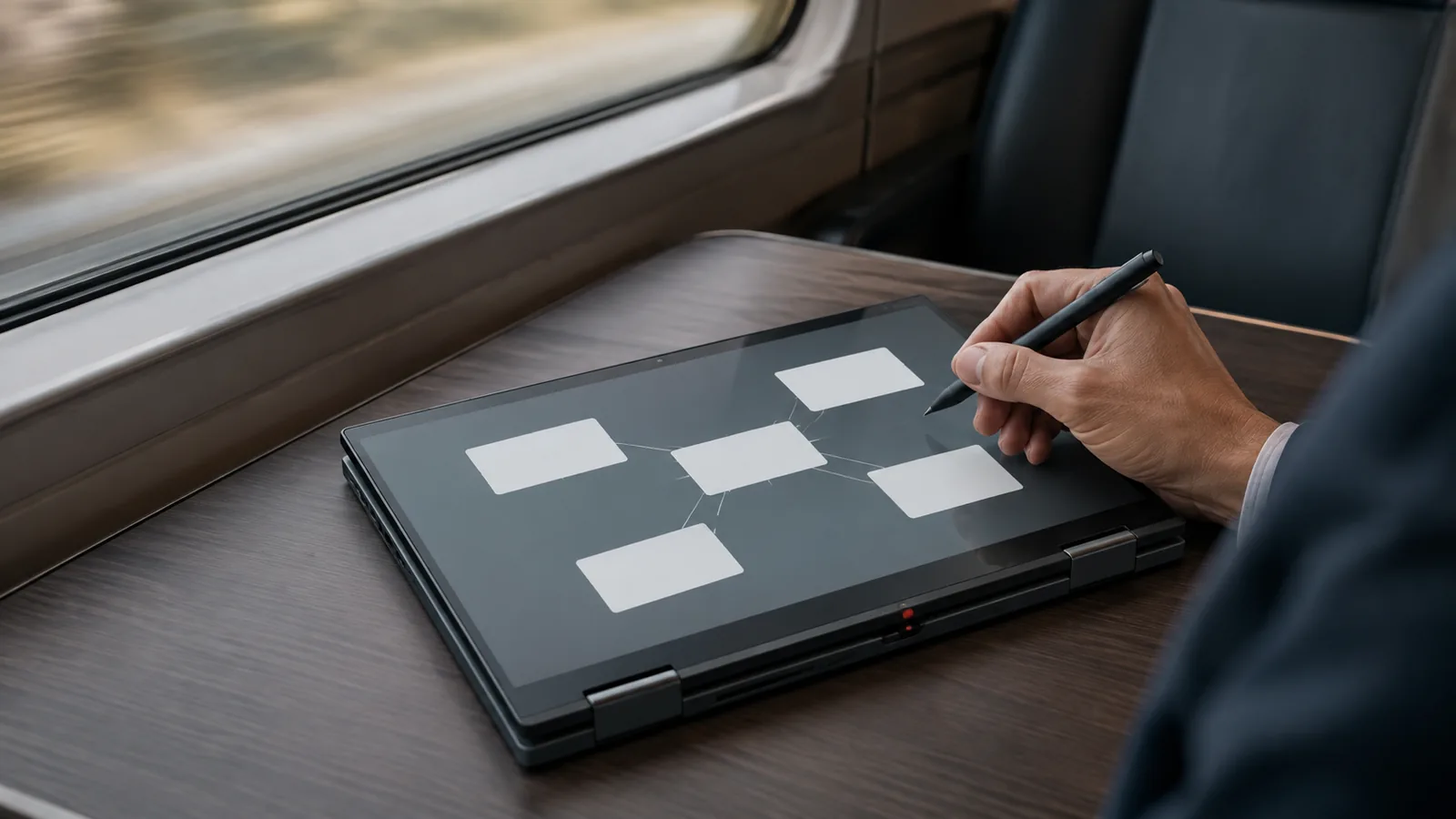
If your work involves drawing or annotation, the Lenovo Slim Pen supports 4,096 levels of pressure sensitivity. However, Windows Central warns that the pen is long and cylindrical, making it uncomfortable for extended sessions. Artists might prefer third‑party pens or a dedicated drawing tablet. The 2.8K OLED panel’s 100 % DCI‑P3 coverage and 120 Hz refresh make colors pop and strokes respond instantly.
Travel and field work
Business travelers will appreciate the Gen 9’s lightweight design and optional 5G WWAN. The durable chassis and MIL‑STD‑810H certification mean it can handle bumps in a backpack. Battery life is long enough for trans‑Atlantic flights if you use the IPS panel and moderate brightness. Rapid Charge ensures quick top‑ups during layovers.
Step‑by‑step evaluation summary
- Choose your configuration – Decide between IPS or OLED panels and select an Ultra 5 or Ultra 7 CPU. Remember the RAM is soldered, so order the amount you need (16 GB, 32 GB or 64 GB). Storage can be upgraded later.
- Unbox and set up – Flip the lid and log in via face recognition or the fingerprint reader. Lenovo’s preinstalled Vantage software helps update drivers and manage settings.
- Test modes – Rotate the display through laptop, tent, stand and tablet modes. The sturdy hinge should hold positions smoothly.
- Personalize pen usage – If you purchased the Slim Pen, attach it magnetically to the right side. Be careful: it can obstruct the power button and headphone jack.
- Connect accessories – Use the Thunderbolt 4 ports for external monitors and the USB‑A ports for legacy devices. Optional WWAN requires a nano‑SIM card.
- Monitor battery and thermals – Expect 9–15 hours of battery life depending on your tasks. Keep brightness moderate and close unused apps to extend runtime. The cooling system may throttle under sustained heavy workloads.
- Update regularly – Install BIOS and firmware updates via Lenovo Vantage to improve stability, security and battery life.
Competitors and alternative options
- Lenovo ThinkPad X1 Carbon Gen 13 – For those who want a conventional clamshell with the same keyboard and display options, check our ThinkPad X1 Carbon Gen 13 review on FrediTech. It offers similar build quality and battery life without the 2‑in‑1 mechanisms.
- Lenovo ThinkPad X9 Aura Edition – Lenovo’s experimental Aura edition uses a larger 15‑inch OLED display and a modern design. Read Lenovo ThinkPad X9 15 Aura Edition Review for insights into this advanced but pricier model.
- Lenovo Yoga Slim 7x – A Snapdragon‑powered ultrabook with a 70 Wh battery and incredible battery life. Our Yoga Slim 7x Review explains why it lasts 16–23 hours and features a 3K OLED display.
- HP Spectre x360 14 – A close competitor with better battery life (11 h 1 m in Laptop Mag’s test) and higher colour‑gamut display. However, it lacks the ThinkPad’s TrackPoint and has fewer business‑oriented security featuresfreditech.com.
- Dell Latitude 9450 2‑in‑1 – Offers similar features but weighs more (3.38 lb) and lacks USB‑A ports; its Ultra 7 165U chip performs slightly better.
Frequently asked questions (FAQ)
How long does the battery last on the ThinkPad X1 2-in-1 Gen 9?
Battery life varies widely. In PCMark’s Modern Office test it reached 18 h 43 m, while Laptop Mag’s mixed-usage test recorded 9 h 47 m. Windows Central reported about 15 hours of real-world use. Realistically, expect about 9–15 hours depending on brightness, display type, and what you’re doing.
Is the RAM upgradeable?
No. Lenovo uses soldered LPDDR5X memory, so you must choose your RAM at purchase. Storage is upgradeable via a single M.2 2280 SSD slot.
Does the ThinkPad X1 2-in-1 Gen 9 support 5G or Wi-Fi 7?
Yes. The laptop offers Wi-Fi 6E or Wi-Fi 7 and optional 5G WWAN via a nano-SIM slot. WWAN configurations can also include GPS for location services. Bluetooth 5.3 is standard.
Which display should I choose: IPS or OLED?
Choose the IPS panel if you prioritize battery life and mostly work on documents. It covers about 71% DCI-P3 and typically reaches around 326–375 nits.
If you do creative work, the 2.8K OLED panel delivers 100% DCI-P3 coverage and a 120Hz refresh rate. The trade-off is shorter battery life and a glossy finish.
Can I use the ThinkPad X1 2-in-1 Gen 9 for drawing and note-taking?
Yes. The optional Lenovo Slim Pen supports 4,096 pressure levels and attaches magnetically. Some reviewers found it uncomfortable for long sessions and noted it can block the power button when attached. The 360-degree hinge enables tablet mode, and the OLED panel’s 120Hz refresh can make writing feel smoother.
What security features does the laptop include?
It includes an IR webcam with a physical shutter for Windows Hello face recognition, a fingerprint reader, a TPM 2.0 chip, and optional ePrivacy features. Lenovo user presence detection can also lock the screen when you step away.
How does the ThinkPad X1 2-in-1 Gen 9 compare to the X1 Carbon Gen 13?
The X1 Carbon Gen 13 is a traditional clamshell with a similar keyboard and display options. It’s slightly lighter (around 2.5 lb) and often delivers longer battery life, but it doesn’t offer the 2-in-1 hinge flexibility. If you want tablet mode and pen use, the X1 2-in-1 is the better match.
Is it worth buying?
If you value build quality, an excellent keyboard, strong security, and a premium 2-in-1 design, the ThinkPad X1 2-in-1 Gen 9 is a solid choice. Performance is great for everyday work but can trail rivals in heavy workloads, and battery life is good but not always class-leading. Consider alternatives like the Yoga 9i or HP Spectre x360 14 if you want different pricing, endurance, or features.
Conclusion
Lenovo’s ThinkPad X1 2‑in‑1 Gen 9 successfully merges the sturdy ThinkPad ethos with modern convertible versatility. Its recycled aluminium chassis, MIL‑STD‑810H durability and superb keyboard make it a trustworthy companion for professionals. The available 2.8K OLED display is stunning, while the 16:10 IPS option balances color fidelity with longer battery life. Intel’s Core Ultra processors handle everyday productivity but won’t satisfy heavy‑workload users, and the 57 Wh battery delivers anywhere from 9 to 15 hours depending on usage.
The Gen 9’s strengths—top‑notch build quality, business‑class security, good port selection and flexible modes—outweigh its weaknesses for most office users. If you need extra endurance or raw performance, look at rivals like the Yoga 9i, Yoga Slim 7x or MacBook Air M3. Otherwise, the ThinkPad X1 2‑in‑1 Gen 9 remains one of the most refined and versatile business convertibles on the market.
Bottom Line
A laptop is a good buy when its exact configuration fits your workload, portability needs and budget. Compare the reviewed hardware with current alternatives and discounts, then prioritize the display, battery, ports and support you will use every day.